Welcome to the Acabado Theme

Why let page speed ruin the user experience and hurt your SEO when you can fix it with Acabado?

Recent Posts

Ladder Logic Simulator


A ladder logic simulator is a software application that lets you simulate the operation of a PLC ladder diagram with a personal computer, mobile phone or tablet. It allows you to test your PLC ladder diagram without the need to purchase any PLC hardware.

A ladder logic simulator also has the ability to control the state of the inputs, outputs and internal variables. This means that input and output devices do not need to be purchased or connected to the PLC.

You can save time and money by using a ladder logic simulator to test your ladder diagram.

Saving 100’s, even 1000’s of dollars on purchasing a PLC sounds like a good idea. Especially if you are just starting out on the journey to learn ladder logic programming.

Ladder Logic Simulator Free Download

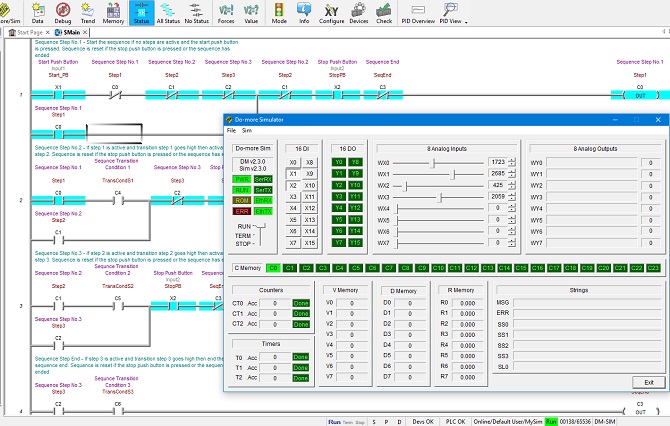
The Do-more Designer PLC Programming Simulator is by far the easiest, most flexible, feature packed ladder logic simulator that’s out there at the moment for a PC.

It’s free to download with no registration required and genuinely no strings attached.

The Do-more Designer is actually the PLC programming software used for the Do-more PLC by Automation Direct.

The actual PLC Programming Simulator is built into the Do-more Designer software and is a full-featured programming tool, not just a demo version.

The beauty of using actual PLC programming software with a built in PLC simulator is that it allows you to get a feel for what real PLC programming software is like.

So when you transition to using real life PLC hardware the learning curve is much easier. Even if you are using different PLC hardware.

The Do-more Designer Software is compatible with Windows Vista, Windows 7, Windows 8 and Windows 10 operating systems.

The minimum system requirements are a 1GHz single core CPU with 1GB RAM and 330Mb of storage.

To get the Do-more Designer PLC Ladder Logic Simulator Free Download from Automation Direct click here.

Ladder Logic Simulator Example

Once you’ve installed the software it’s time to get stuck into a PLC ladder logic simulator example.

Let’s do a ladder logic latch example with the PLC simulator.

For an explanation on ladder logic latch programming click here.

Create a New Project To Use With the PLC Simulator

Run the application and choose New Offline Project….
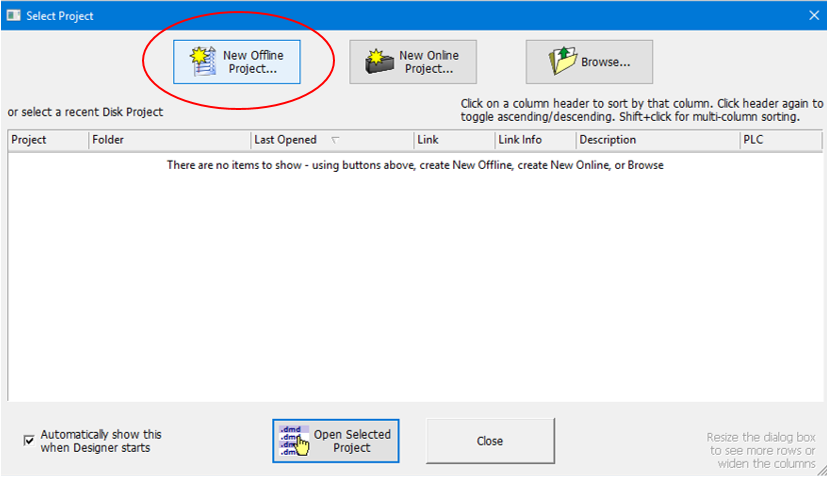
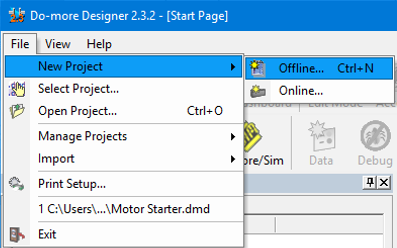
If the “Select Project” dialog box does not automatically pop up then go to File, New Project and select Offline…
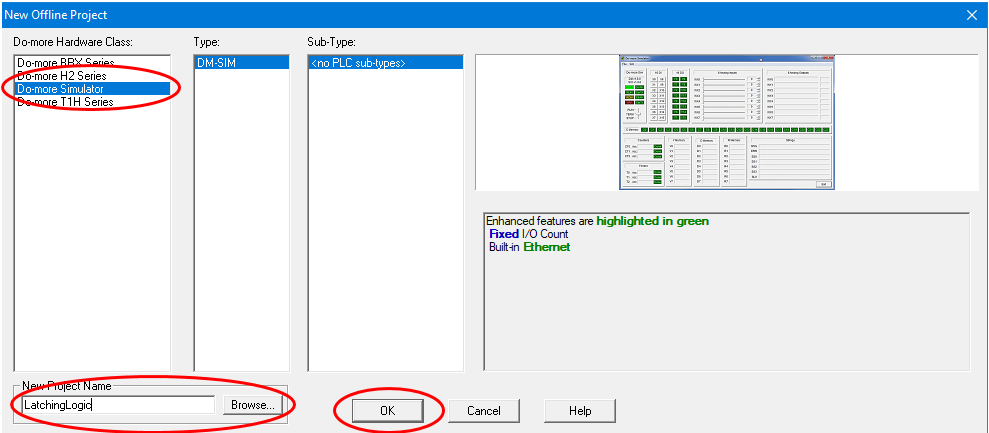
In the “New Offline Project” dialogue box select “Do-more Simulator” in the Do-more Hardware Class. Then name the project, select the directory location and click OK….
Well done. We have just created a new project file for the PLC simulator.

PLC Simulator Layout

When your newly created project first fires up the layout should be similar to below….
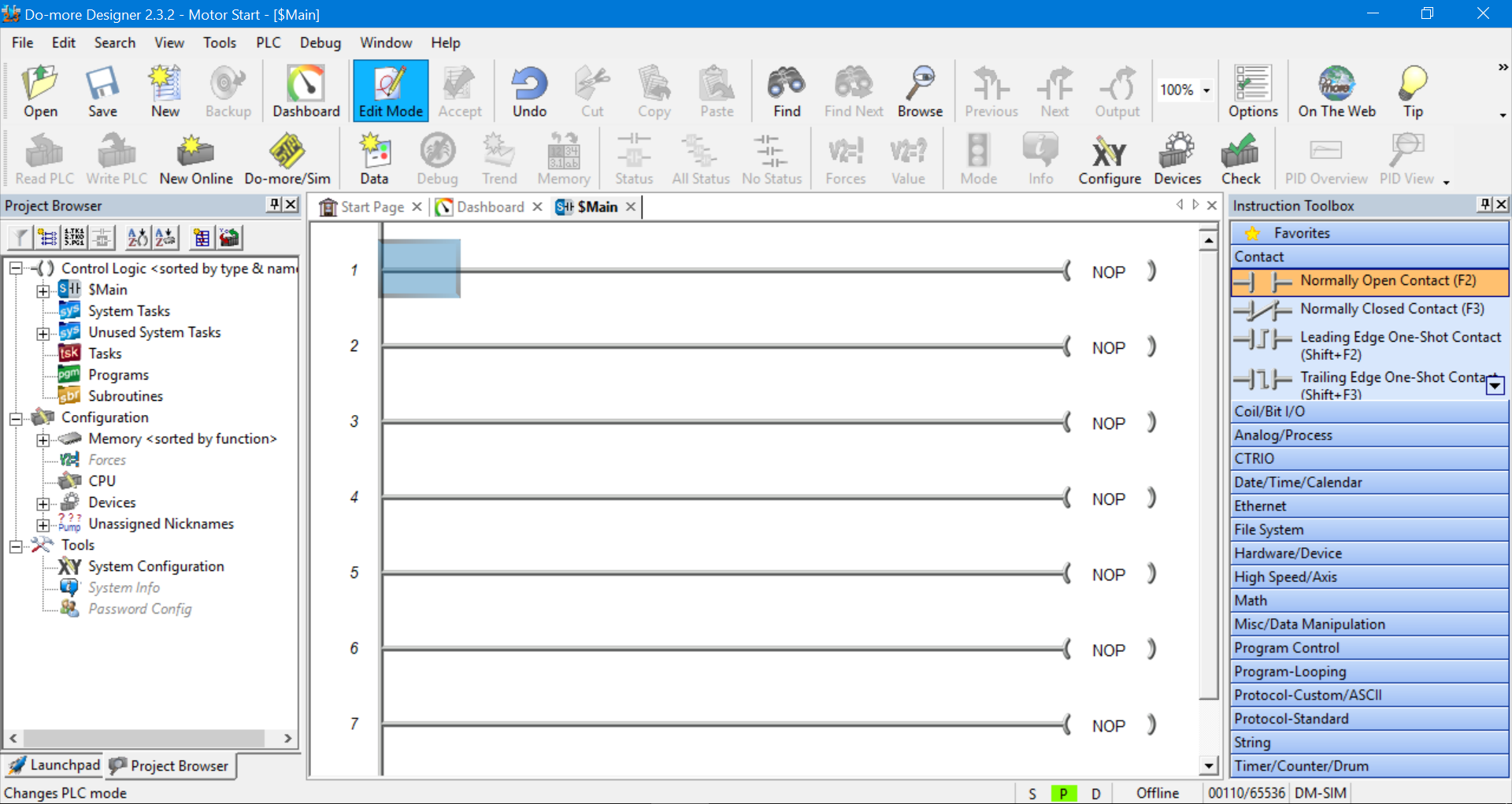
The Main Toolbar is at the top, the Project Browser is on the left, the Instruction Toolbox is on the right and the Status Bar is down the bottom.

The Main Toolbar and Project Browser can be hidden or made visible by selecting the View menu in the Main Toolbar. And the Instruction Toolbox can be hidden or made visible by selecting the Edit menu in the Main Toolbar.

We should have the Main program displayed. It will have a bunch of rungs connected to NOP (no operation) outputs.

We can close the Dashboard and Start Page tabs (next to the Main tab) to simplify things.

If you accidentally close the Main program just double click on “Main” in the Project Browser on the left hand side…
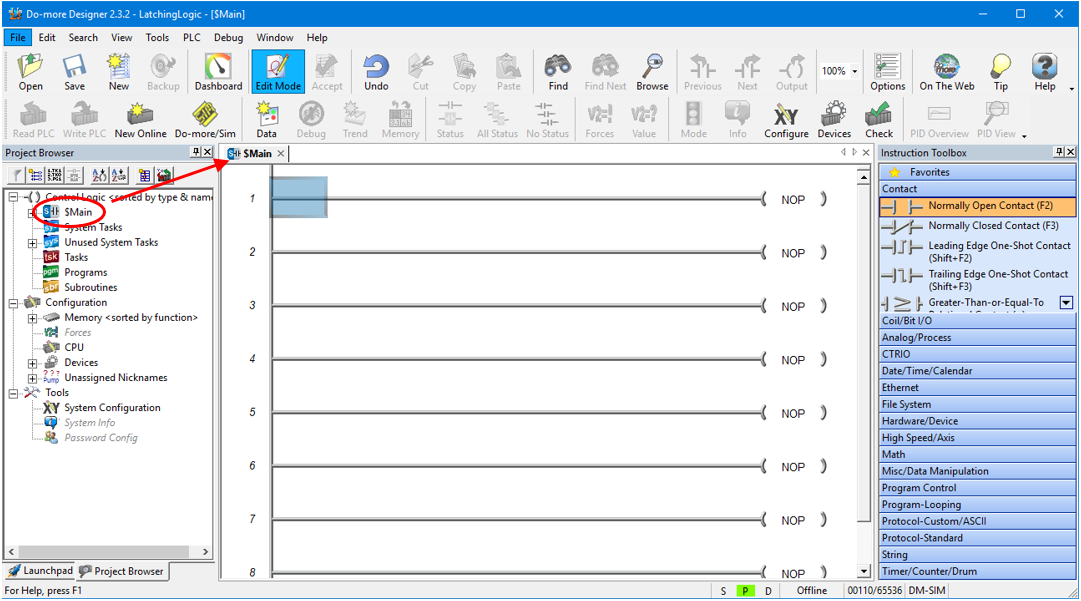
The Do-more Designer is fully functional PLC programming software. There is an awful lot that we can do with this kind of software with regards to structuring and organizing our program.

Because we are using the PLC programming simulator we will be limited to the amount of ladder logic programming that we can simulate at any one time. So we don’t need to fully utilize all of the software’s features.

We will only need to do our ladder logic programming in the Main program. There is no need to create extra programs or sub routines at this stage. We’ll stick to the essentials for now.

Using the Ladder Diagram Editor

So let’s get started with our first piece of ladder logic programming.

If Edit Mode is not highlighted in the Main Toolbar then click on it to enable program editing….
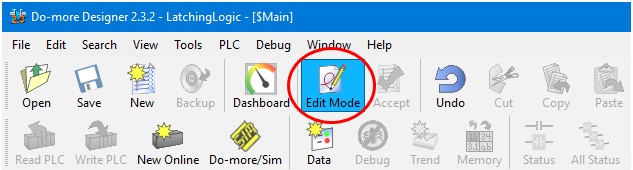
This will also pop up the Instruction Toolbox on the right hand side.

Please note that the Do-more PLC simulator calls a symbol an instruction. Don’t worry, the two terms, instructions and symbols, are readily interchangeable.

Grab a Normally Open contact symbol (or instruction) from the Instruction Tool bar and drag and drop it into the start of the first rung….
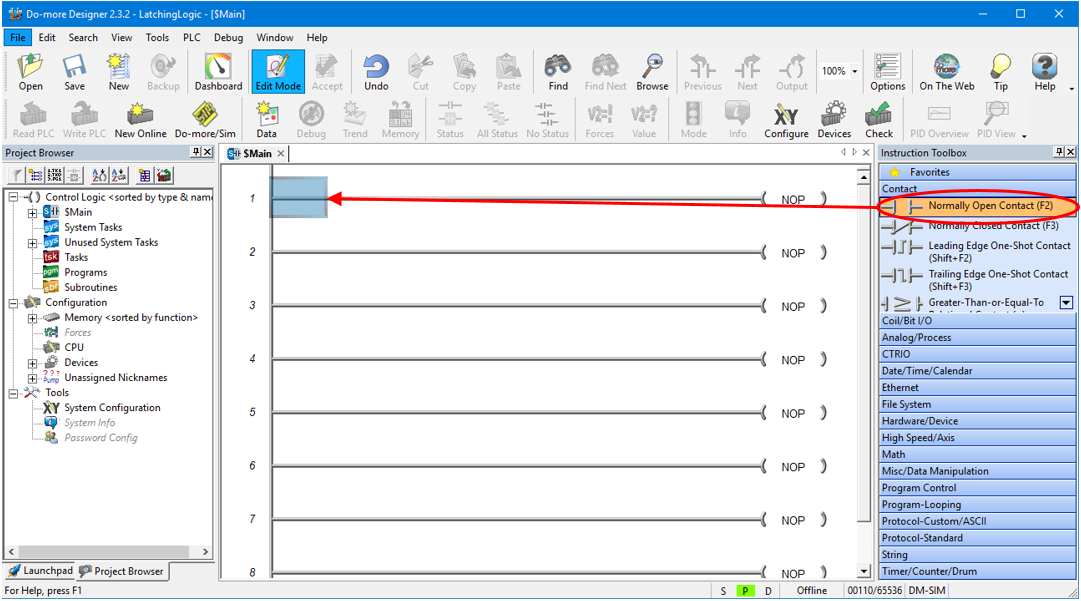
If we drop the instruction in the wrong spot or have accidentally dropped the wrong instruction then we can cancel it by hitting the ESC key.

If we have already declared the symbol and want to delete it then select the symbol and hit the Delete key.

A dialogue box will popup so we can declare the symbol.

PLC Simulator Input Symbol Declaration

The Do-more PLC programming simulator allocates symbol addressing the same as the actual real life PLC.

In this example we will be declaring digital inputs and digital outputs as per below….

X0-2047 (Digital Inputs)

Y0-2047 (Digital Outputs)

Because this PLC simulator is fully featured there are other symbol declarations possible, but we will not be using them for this example….

C0-2047 (Digital Internal Variables)

RX0-255 (Real Analog Inputs)

WX0-255 (Signed Word Analog Inputs )

RY0-255 (Real Analog Outputs )

WY0-255 (Signed Word Analog Outputs

R0-2047 (Real Internal Analog Variables)

V0-2047 (Unsigned Word Internal Analog Variables)

N0-2047 (Signed Word Internal Analog Variables )

D0-2047 (Signed Double Word Internal Analog Variables)

T0-255 (Timers )

CT0-255 (Counters)

ST0-1023 (System Variables)

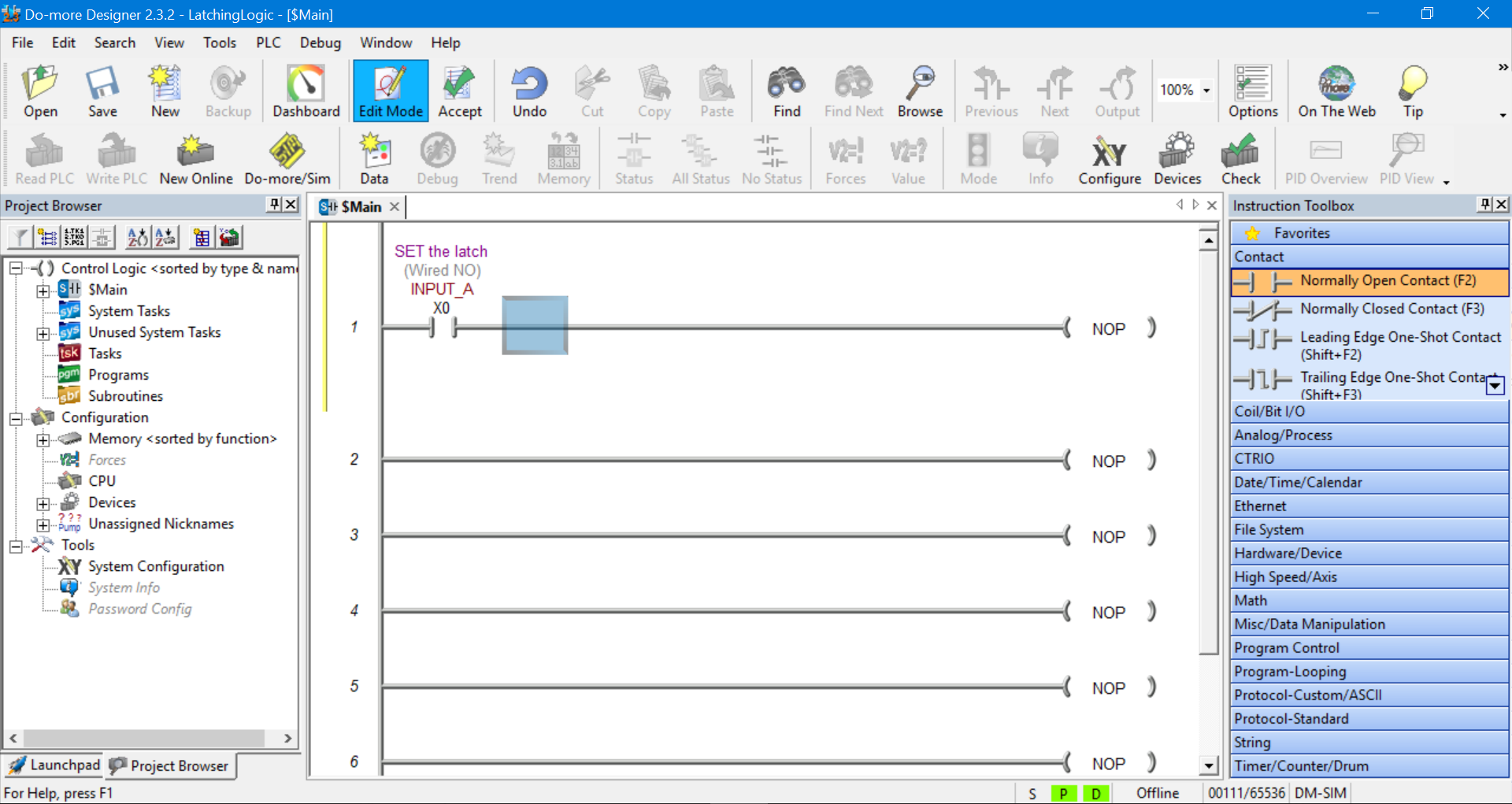
To declare the instruction as a digital input type X0 into the text field and click on the magnifying glass icon. Don’t worry about the yellow popup box for now, you can close it if you want….
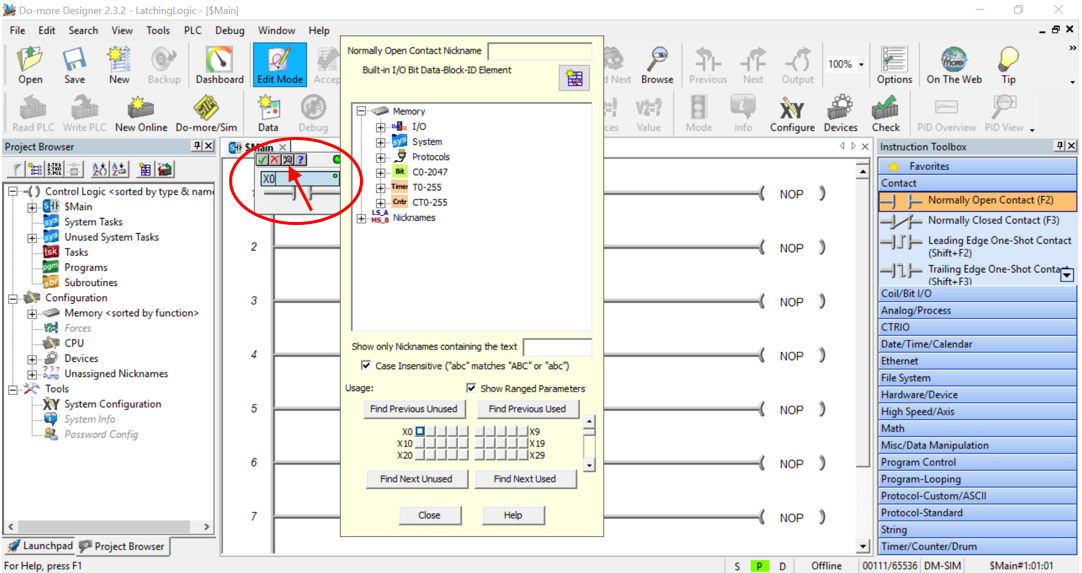
After the magnifying glass icon is selected the Element Browser table will popup. Fill it in as per below….
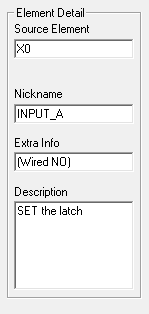
And then click Select.…
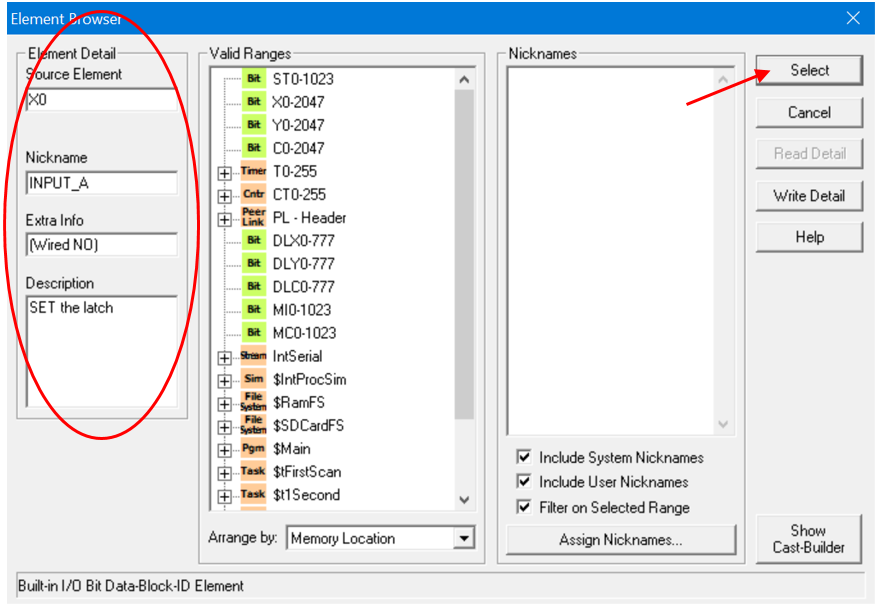
Save the changes when prompted.

Then click on the tick icon to accept the instruction declaration…
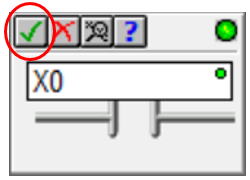
Now, the first rung of the ladder diagram should have the normally open contact with all the declared information displayed above it, as per below…..
PLC Simulator Output Symbol Declaration

So let’s add an output to the first rung.

Double click on the NOP output on the right hand side of the first rung. The instruction declaration pop up box appears.

This time we need to declare an output address, so type Y0 into the text field. Then click the magnifying glass….
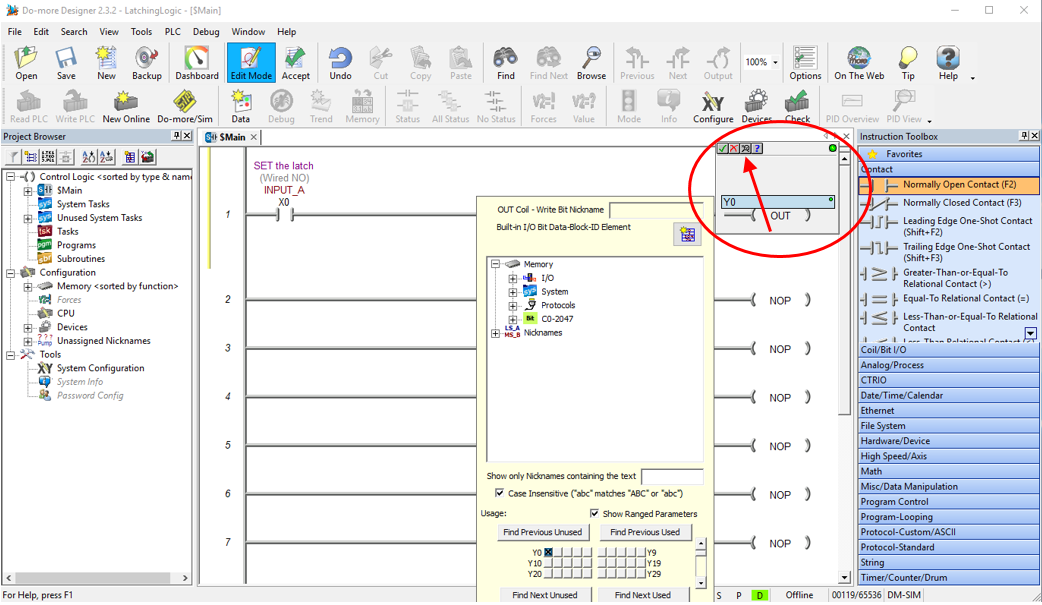
After the magnifying glass icon is selected the Element Browser table will popup. Fill it in as per below….
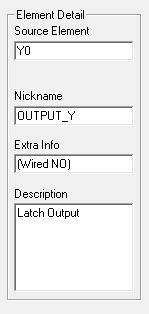
And then click Select.…
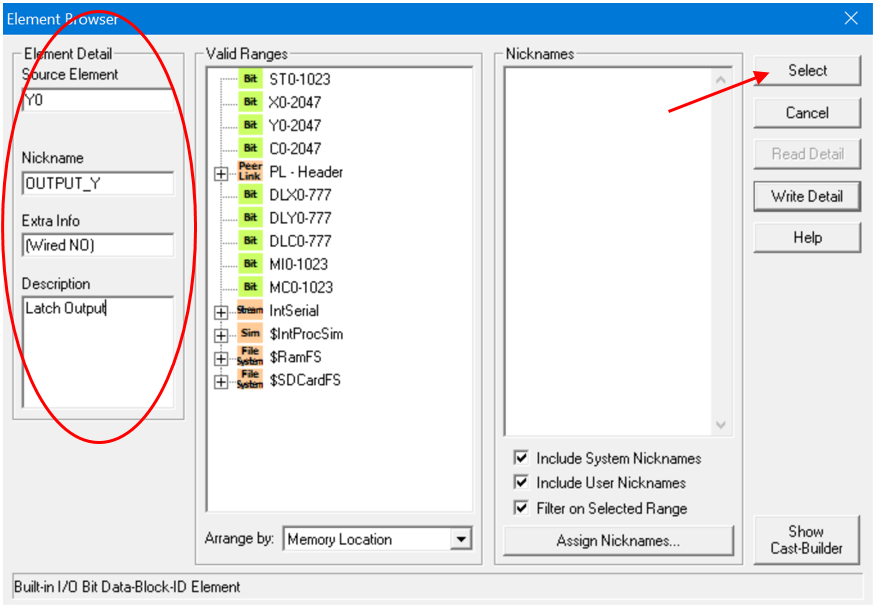
Save the changes when prompted.

Then click on the tick icon to accept the instruction declaration…
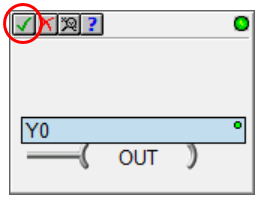
The first rung of the ladder diagram should now have the normally open contact in series with the output. All the declaration information should be displayed above each ladder logic symbol….
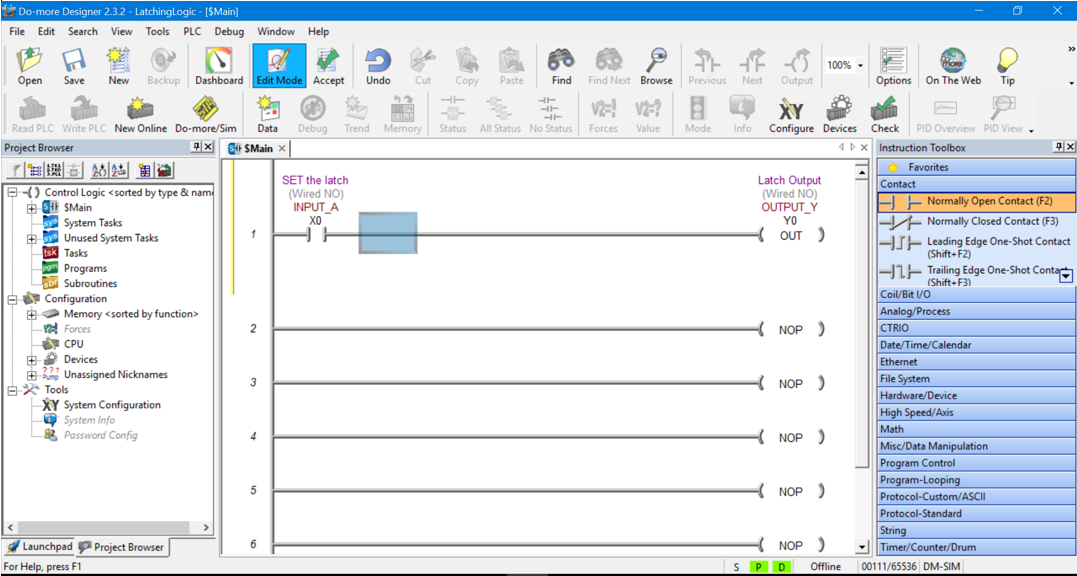
Adding More Symbols Using the Ladder Diagram Editor

Let’s continue with adding the rest of the ladder diagram symbols for the Latching logic.

This time we need to drag and drop a normally closed contact into the position next to INPUT A.

Use the same procedure as above to declare the instruction. This time declare it as input X1 as per the information below…
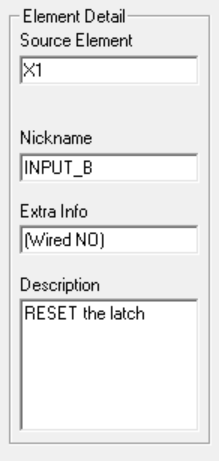
Remember to click Select, Save the changes if prompted and then click on the tick icon to accept the instruction declaration.

Now we’re cooking. The Main program should look like this….
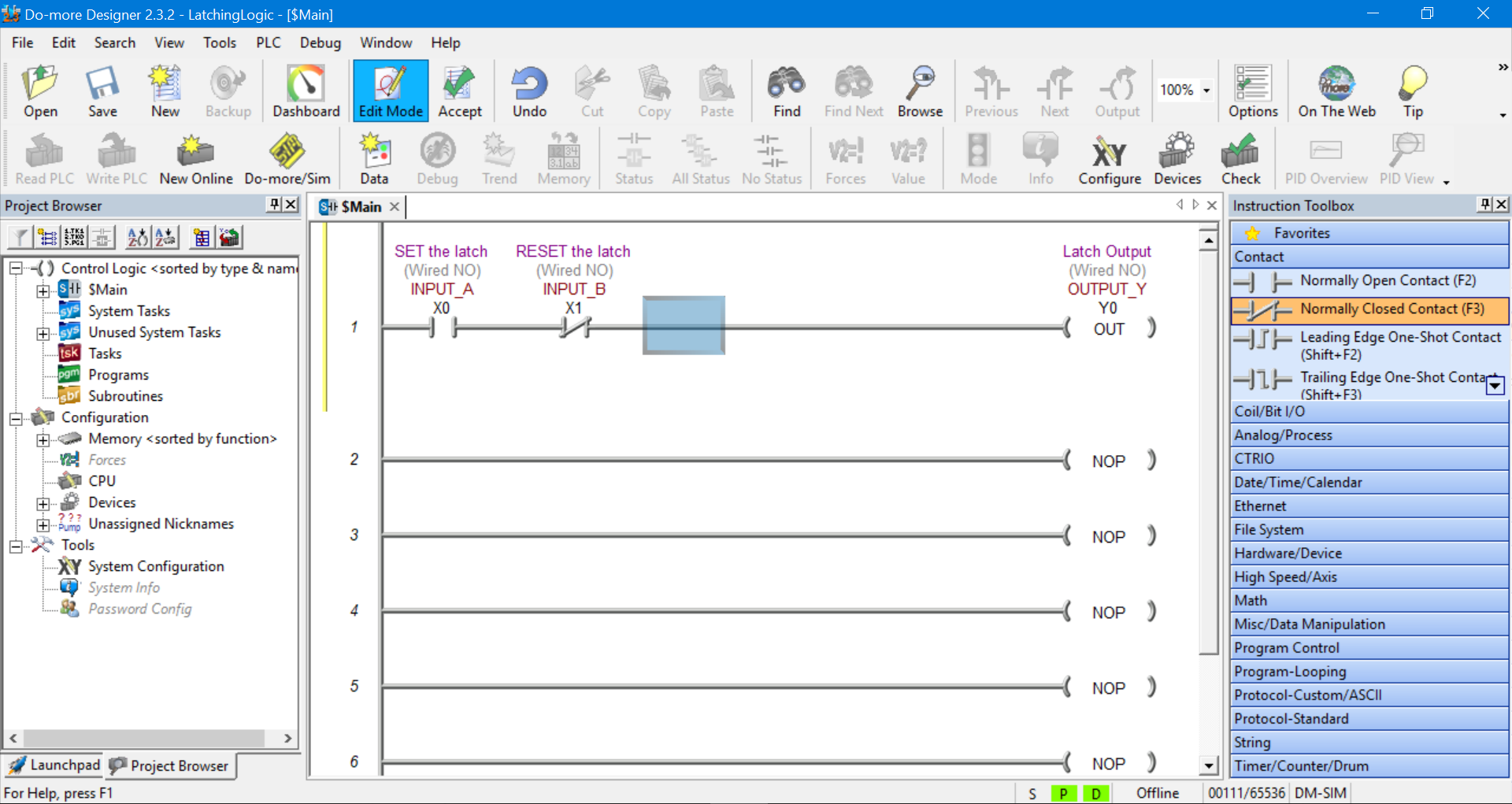
Adding a Symbol Branch Using the Ladder Diagram Editor

Time to add the last ladder diagram symbol to complete our ladder logic latch PLC simulator example.

Grab a normally open contact and drag and drop it into the area just below the INPUT A symbol.

This symbol has already been declare so we do not need to declare it again. Just enter Y0 in the instruction declaration text box and hit the tick icon or press enter.

The Main program should look like this….
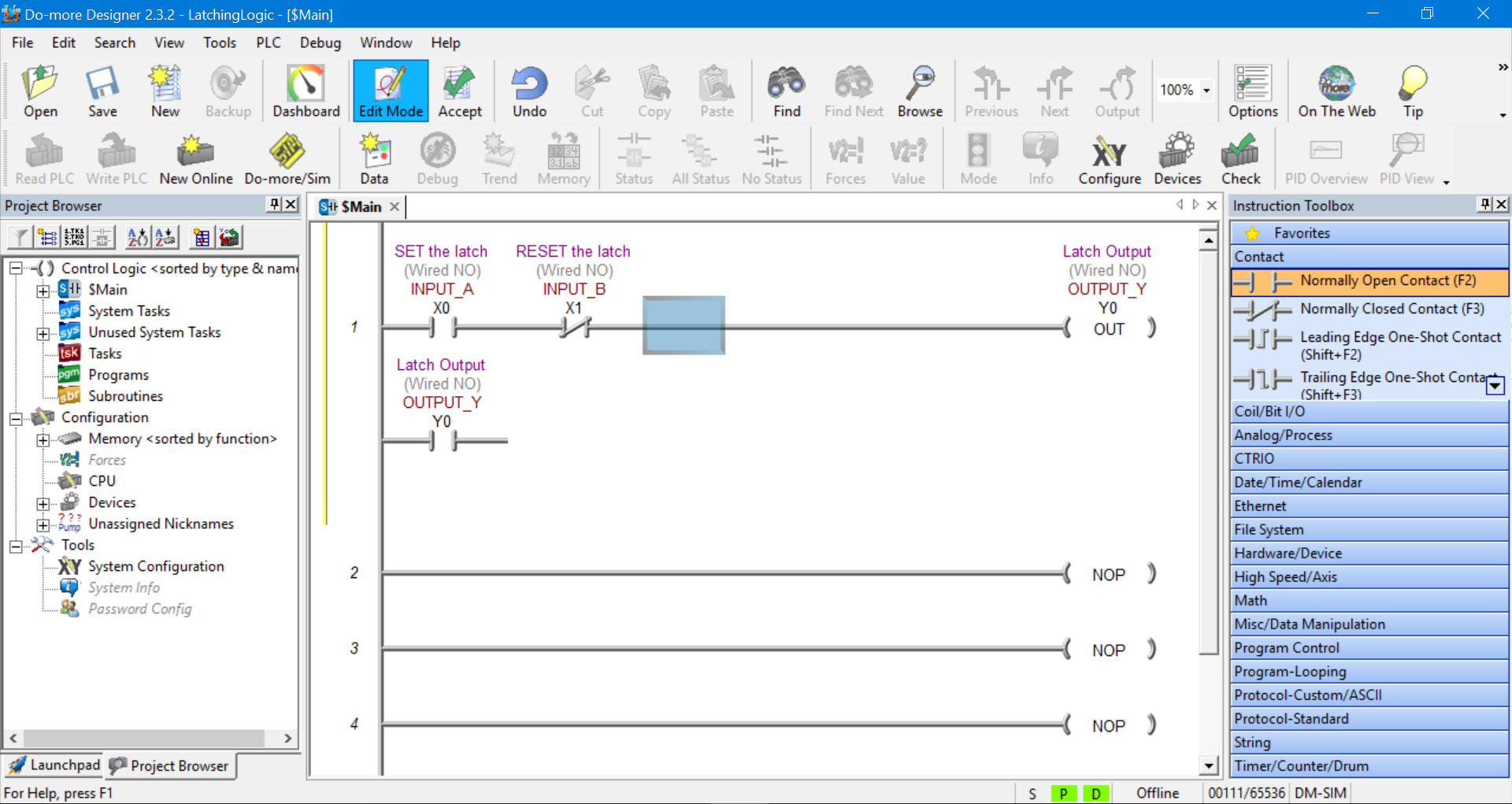
Notice there is a connection missing between the new symbol just added and rung 1.

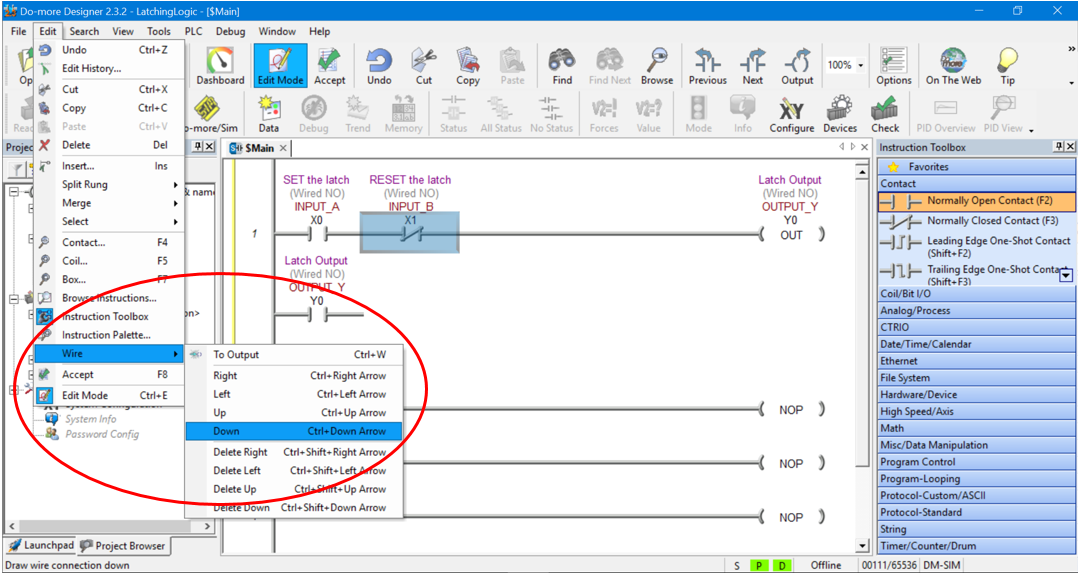
We can add that connection by clicking on INPUT B symbol to select it. Then going to the main toolbar and selecting Edit, Wire and the Down.

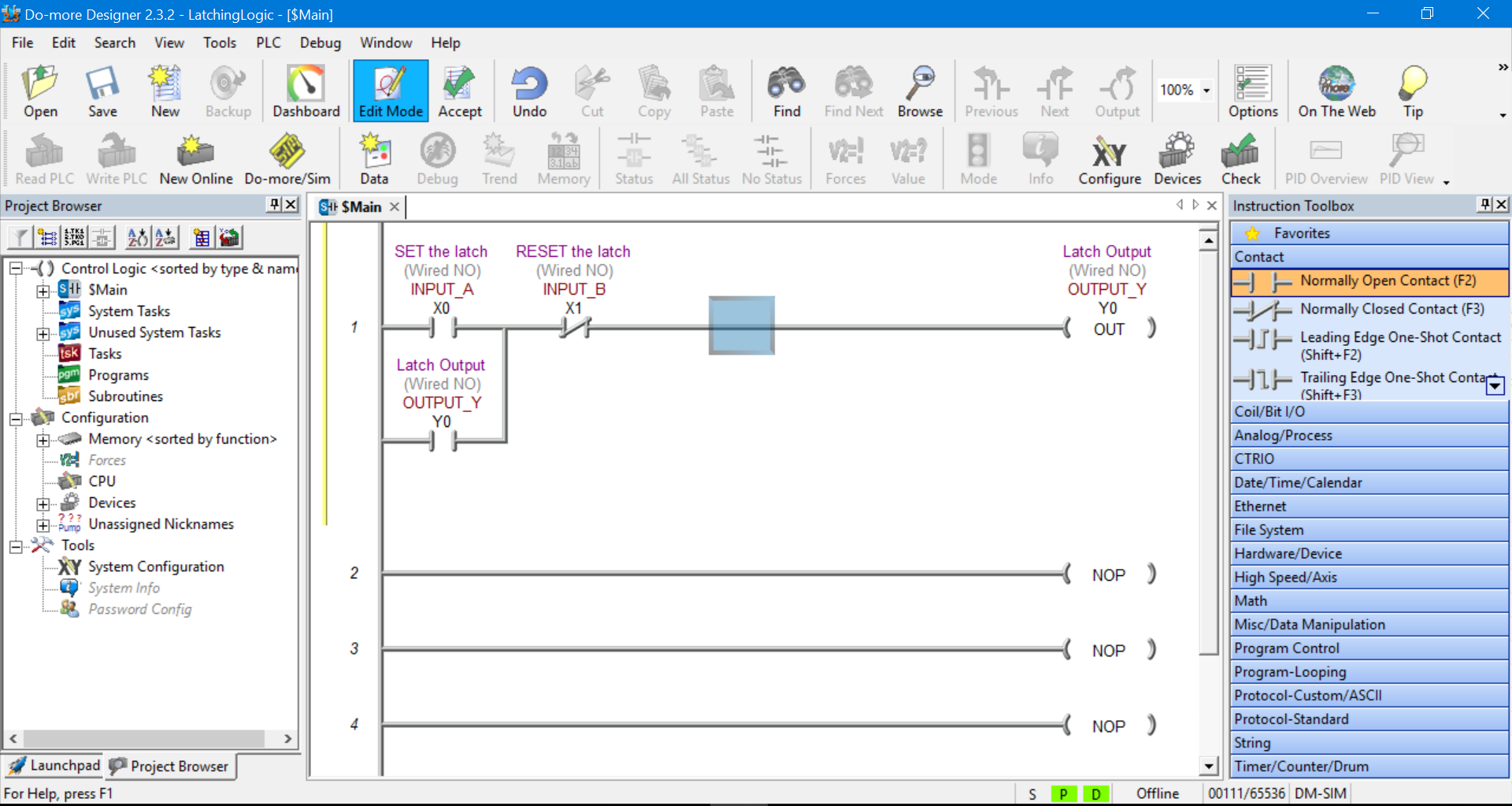
This will create a connection from rung 1 down to the end of Output Y normally open contact. Thus creating a branch (or parallel) connection across INPUT A normally open contact….
The final result should look like this….
Compile the Changes Made to the Ladder Diagram 

Before we can proceed we need to compile any changes that have been made to the ladder diagram.

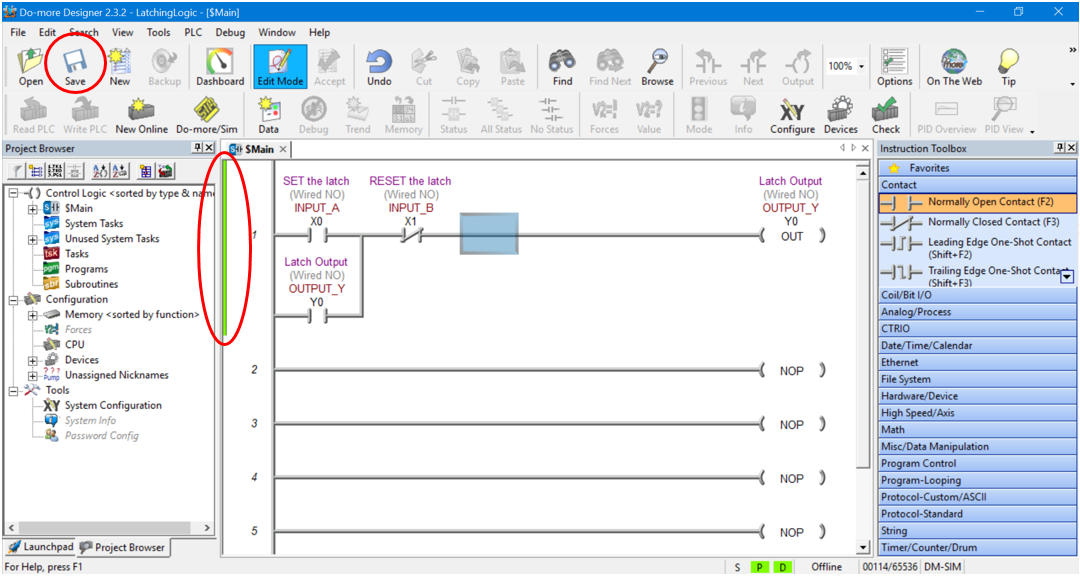
The yellow bar on the left hand side of the first rung on the ladder diagram prompts you to compile the programming changes by clicking the Accept button in the Main Toolbar….
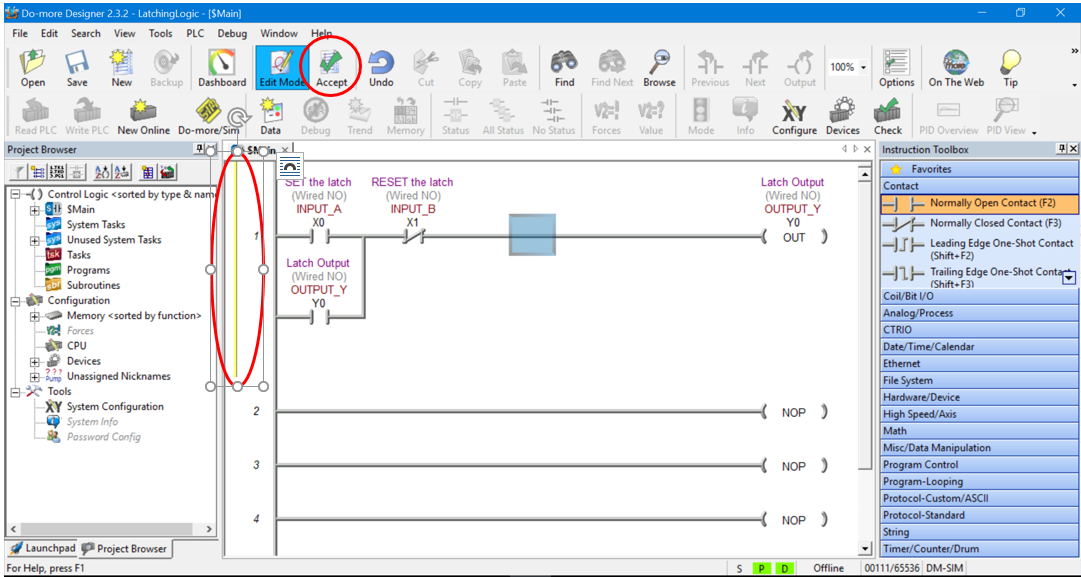
After the Accept button is clicked a green bar appears prompting you to save the ladder diagram project.

Click the Save button in the Main Toolbar and if the properties pop up box appears click ok. Once the project is saved the green bar disappears….
Connect to the PLC Simulator

We are now ready to connect to the PLC programming simulator.

The PLC programming simulator behaves just like a PLC. You need to connect to it, download your program and place it in RUN mode.

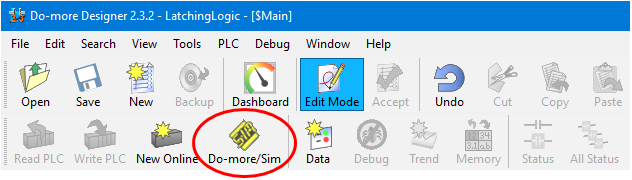
First we need to fire up the PLC simulator by clicking on the Do-more/Sim button on the Main Toolbar….
Click OK when the “Launch and Connect to Do-more PLC Simulator?” pop up appears. The Do-more PLC Simulator will then launch….
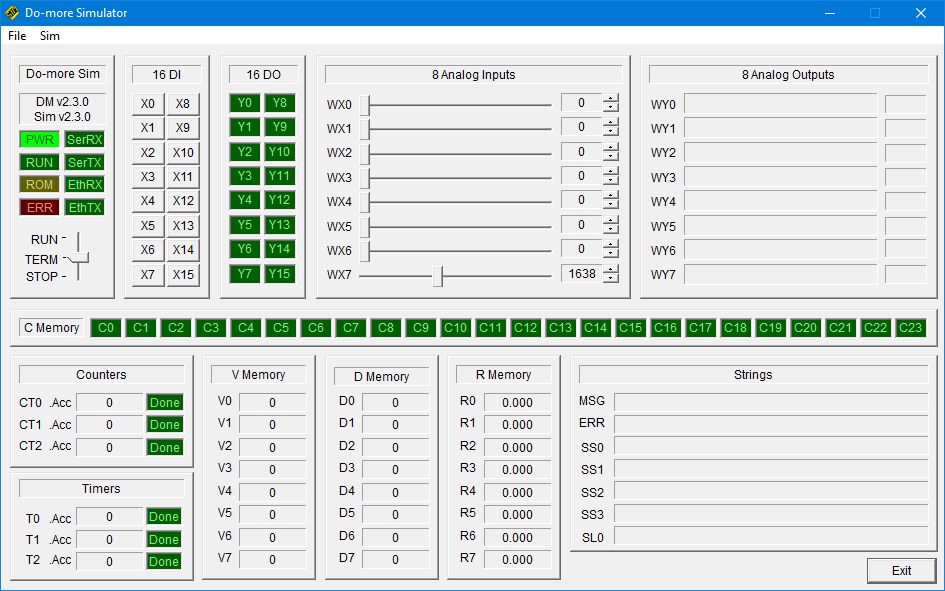
PLC Simulator
PLC Simulator

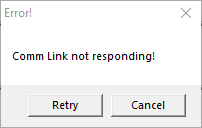
You may have some communication errors pop up. This is because we haven’t connected to the PLC simulator yet.

Please Note….The error popup box may be behind the PLC simulator window. This took a bit to figure out, very sneaky. Hope that saves you some pain!

If you get an error pop up box appear displaying “Comm Link not responding” then click Cancel….
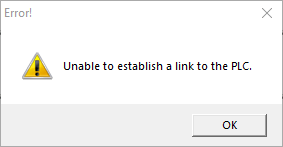
If you get an error pop up box appear “Unable to establish a link to the PLC.” then click OK….
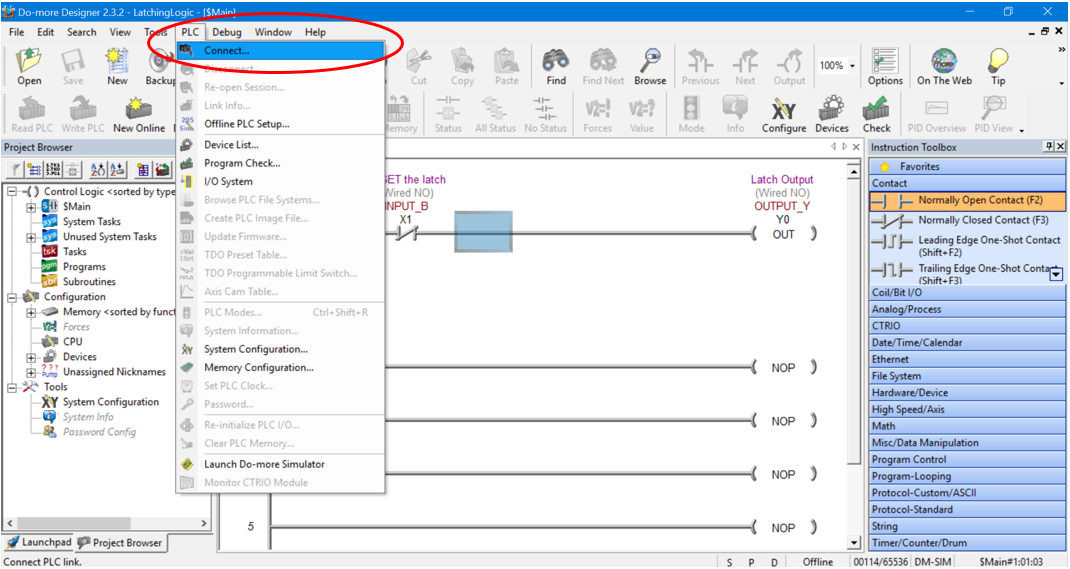
Now, let’s connect to the PLC simulator. Go to the PLC tab in the Main Toolbar and click on Connect….
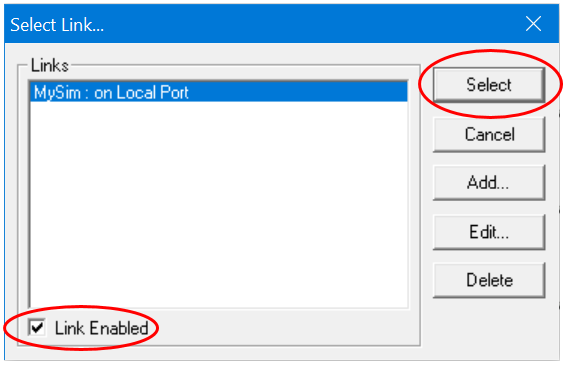
The “Select Link…” pop up box appears with “MySim: on Local Port” highlighted. Make sure to select the “Link Enabled” check box in the bottom left hand corner and then click the Select button….
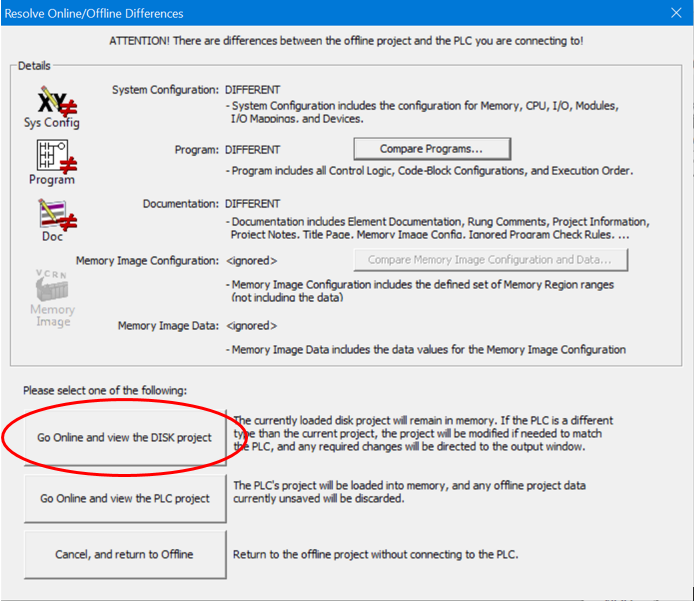
The “Resolve Online/Offline Differences” pop up box appears because we have not downloaded the ladder diagram to the PLC simulator yet. Click on “Go Online and view the DISK project” button….
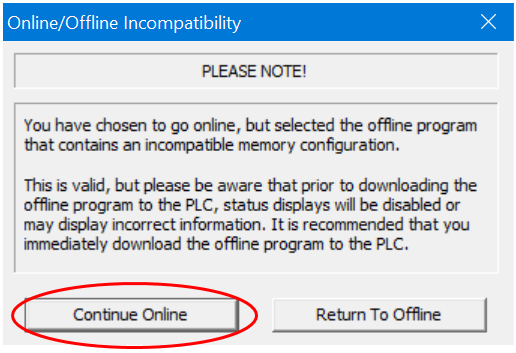
Then click the Continue Online button when the “Online/Offline Incompatibility” pop up box appears….
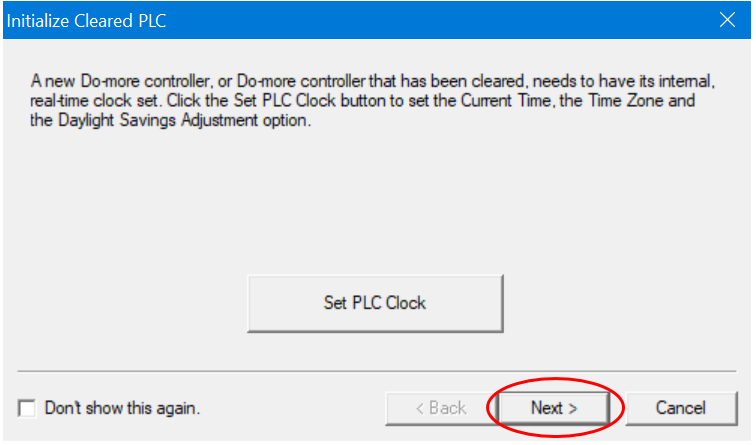
Click the Next button when the “Set PLC Clock” pop up box appears….
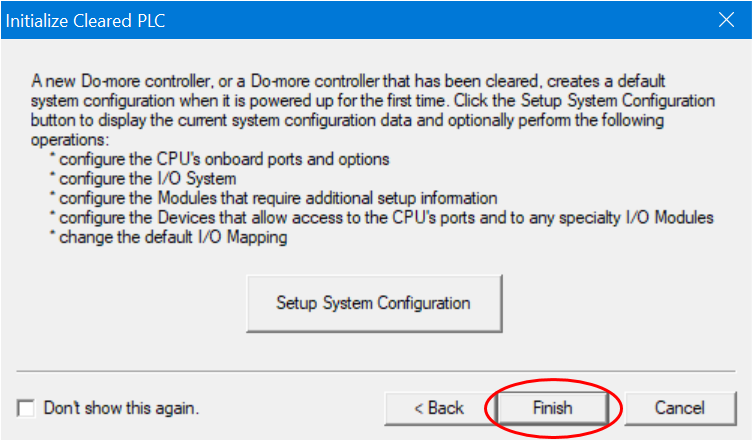
Click the Finish button when the “Setup System Configuration” pop up box appears….
We should now be connected to the PLC simulator. The Status Bar at the bottom of the ladder diagram editor should read Online….

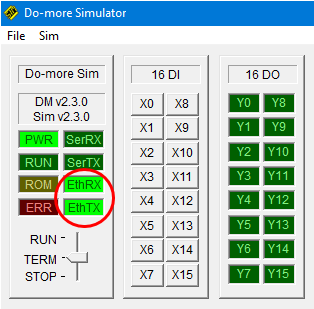
Also, the PLC simulator EthRX and EthTX indication boxes should be green to indicate simulated Ethernet transmit and receive signals between the software and PLC simulator.

If they are flashing then the Status function is turned off, we’ll take care of that a bit later….
Download and Run the PLC Simulator

The light blue bar on the left hand side of the first rung on the ladder diagram indicate that there are differences between the offline ladder diagram and online PLC programming simulator.

Also, the S, P and D boxes in the bottom Status Bar are also highlighted light blue to indicate that there are program differences between the offline ladder diagram and online PLC programming simulator.

Lastly, there should be warning message appear just below the rung editing area which is triggered because of the differences between the offline ladder diagram and online PLC simulator …..
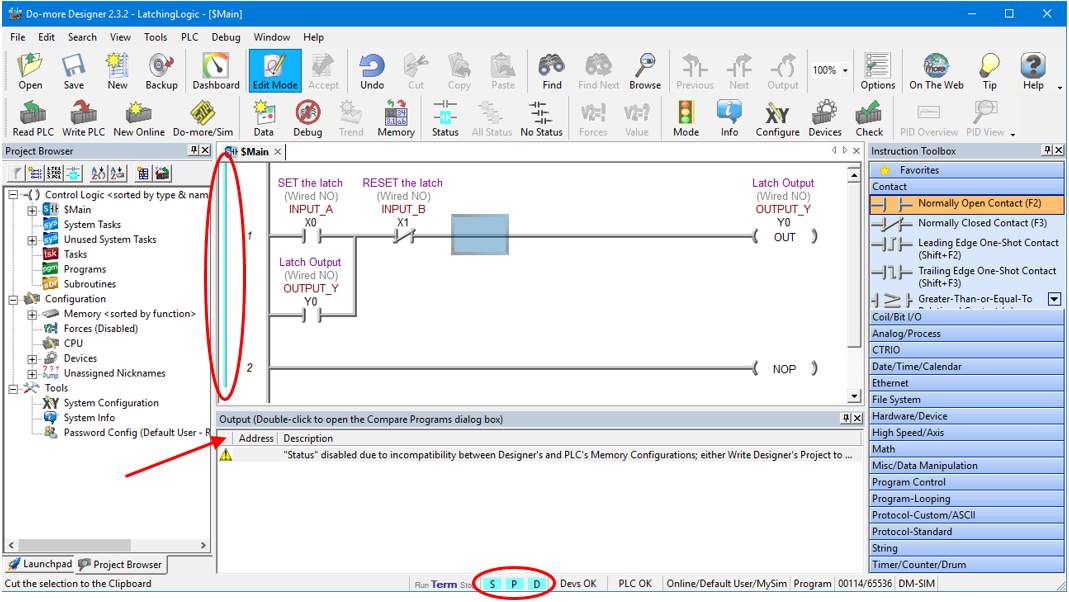
All we need to do to now is download the offline ladder diagram to the PLC programming simulator.

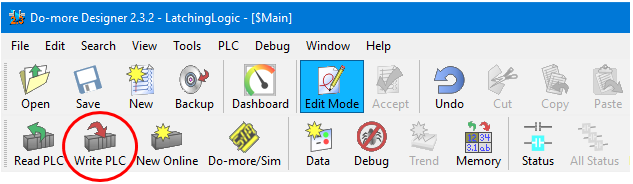
Click on “Write PLC” in Main Toolbar to download the ladder diagram to the PLC simulator….
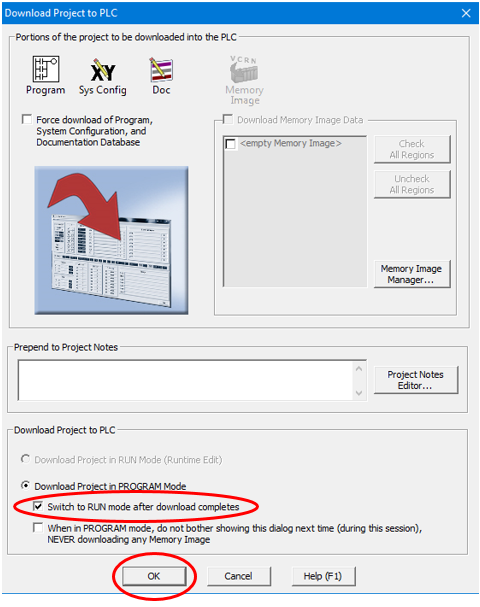
When the “Download Project to PLC” pop up box appears select the check box to “Switch to RUN mode after download completes” and then click OK….
Click Yes to turn ALL STATUS ON….
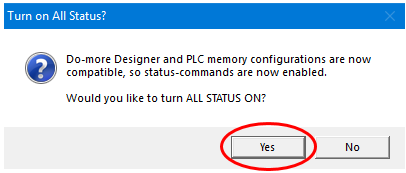
Now we are connected to the PLC programming simulator, have downloaded the ladder diagram and have turned the Status indication ON.

We should have the status bar at the bottom of the ladder diagram editor window displaying Online and Run….
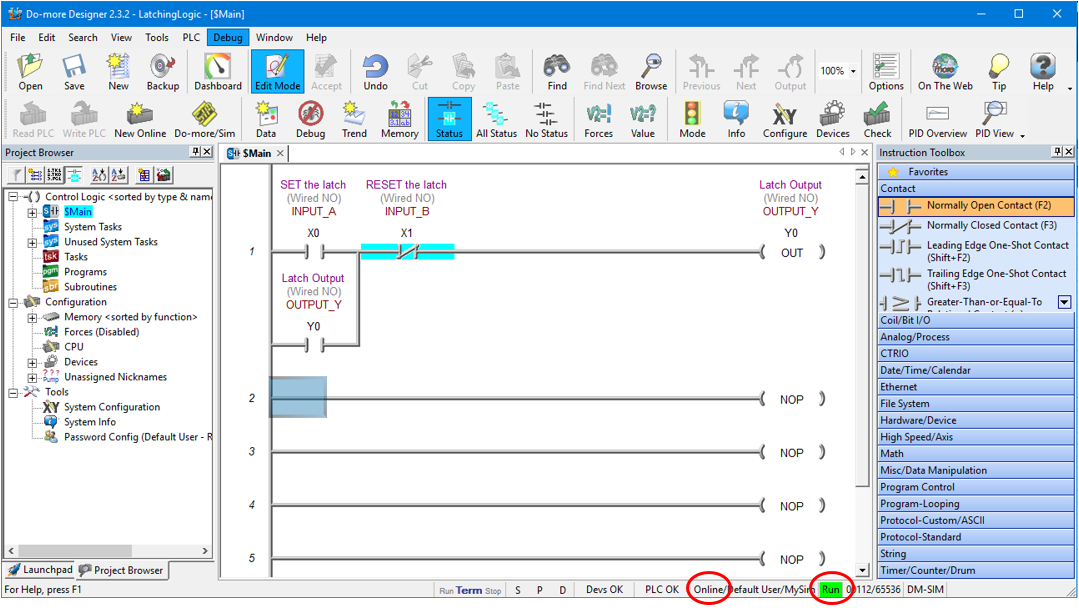
The PLC simulator EthRX and EthTX indication boxes should change to be steady green when the Status indication ON.

We have already put the PLC simulator into RUN mode when we did the download, but while we are here we can drag and drop the PLC Mode Switch from TERM to RUN….
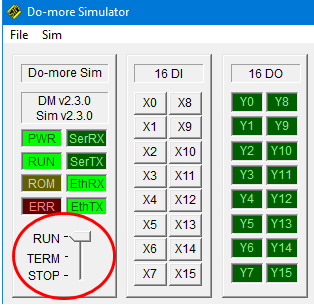
Now we’re ready to put the PLC simulator through its paces!

Using the PLC Simulator

To use the PLC Simulator we just need to click on the input address buttons X0-X15 to change the state of the inputs. When the button is the depressed position the input is ON and when the button is in the released position the input is OFF.

In the ladder diagram the status of the logic symbols highlights in light blue when the ladder symbol logic flow is TRUE.

If the ladder diagram symbols are not highlighting then click on “Status” in Main Toolbar to enable it….
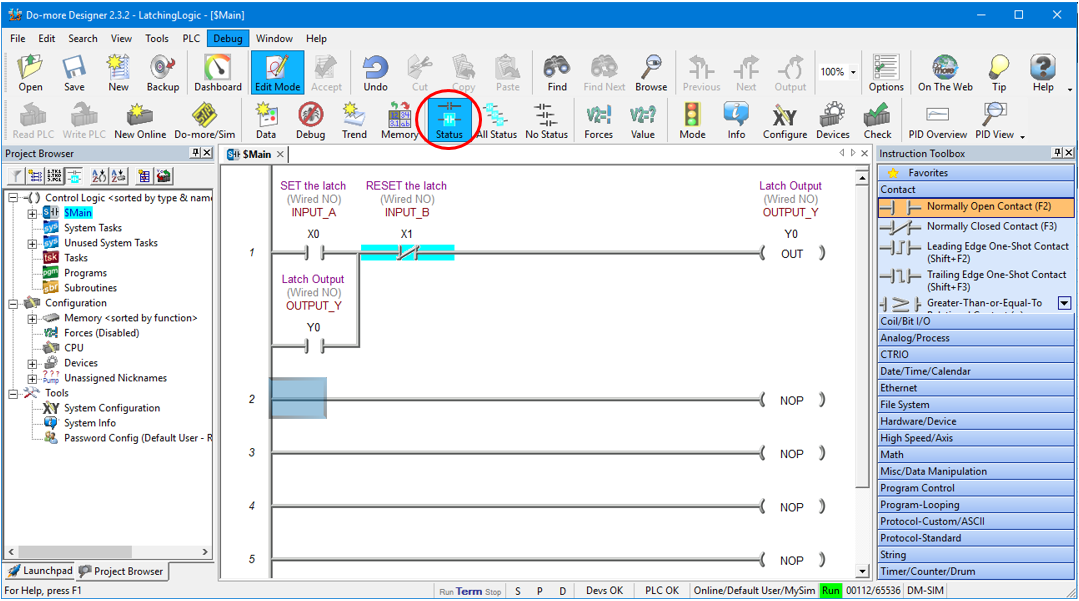
PLC Programming Simulator

When Inputs X0 and X1 are both de-activated then the logic flow is blocked and Output Y0 is OFF….
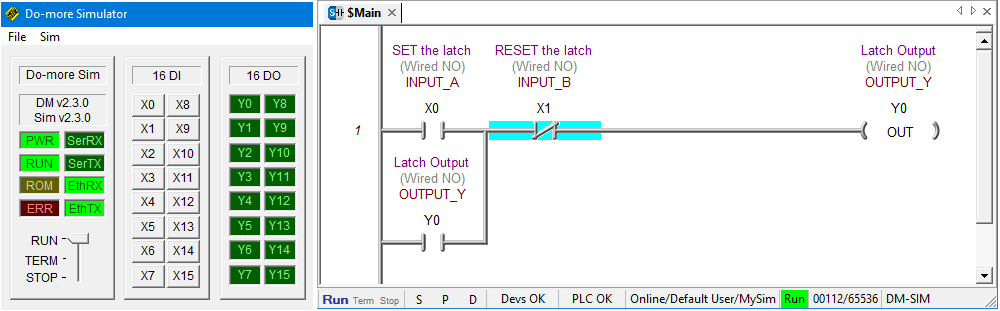
To activate and de-activate inputs we simply click on the X0-15 buttons in the PLC simulator. One click turns the input ON another click turns it OFF….
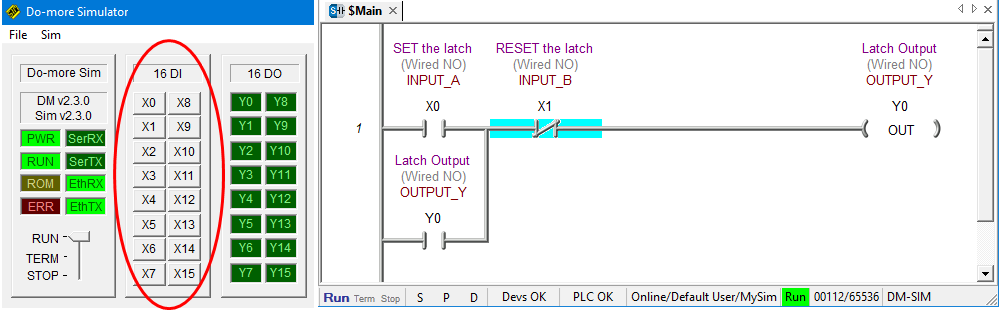
To SET the latch we must activate Input X0 and de-activated Input X1.

So, Click on the X0 button in the PLC simulator to activate Input X0. Input X1 is already de-activated so we don’t need do anything with it at this stage….
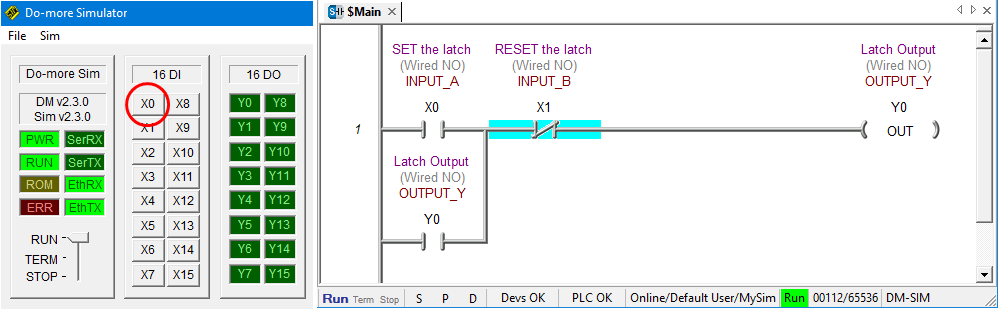
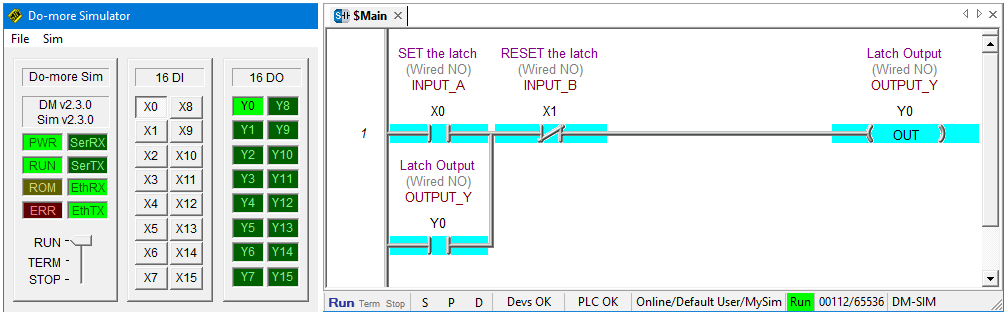
Ladder Logic Simulator – Latching Logic
Ladder Logic Simulator - X0 Sets the Latch
Ladder Logic Simulator – X0 Sets the Latch

Notice that logic flows through X0 and X1 to output Y0 and they are all highlighted….

Once the latch is SET we can de-activate Input X0 by clicking on the X0 button in the PLC simulator. Notice that Output Y0 is ON and is held in….
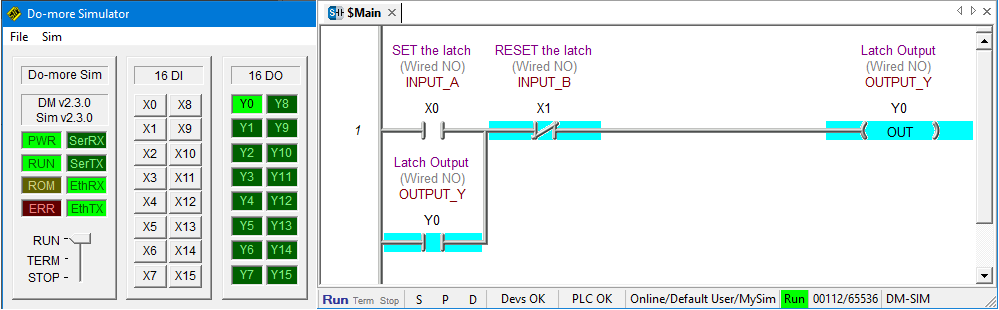
Ladder Logic Simulator – Latching Logic Set

To RESET the latch activate Input X1 by clicking on the X1 button in the PLC simulator.

Because Input X1 is assigned to a normally closed contact symbol logic flow is blocked when the input is activated. That’s opposite to how a normally open contact symbol works and it’s called reverse logic….
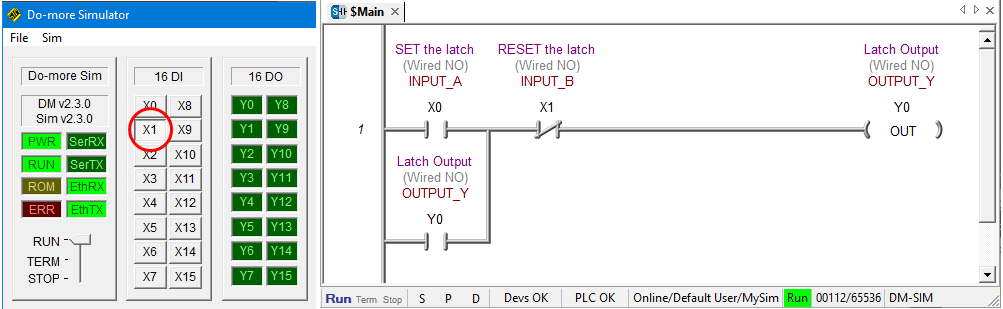
Ladder Logic Simulator – X1 Resets the Latch

To once again SET the latch from this point, Input X1 must be de-activated and then input X0 can be activated.

Adding a Rung Comment Using the Ladder Diagram Editor

To really start program like a pro let’s add a comment to the rung. First click on rung 1 and in the top toolbar click on Tools and then Comment Editor….
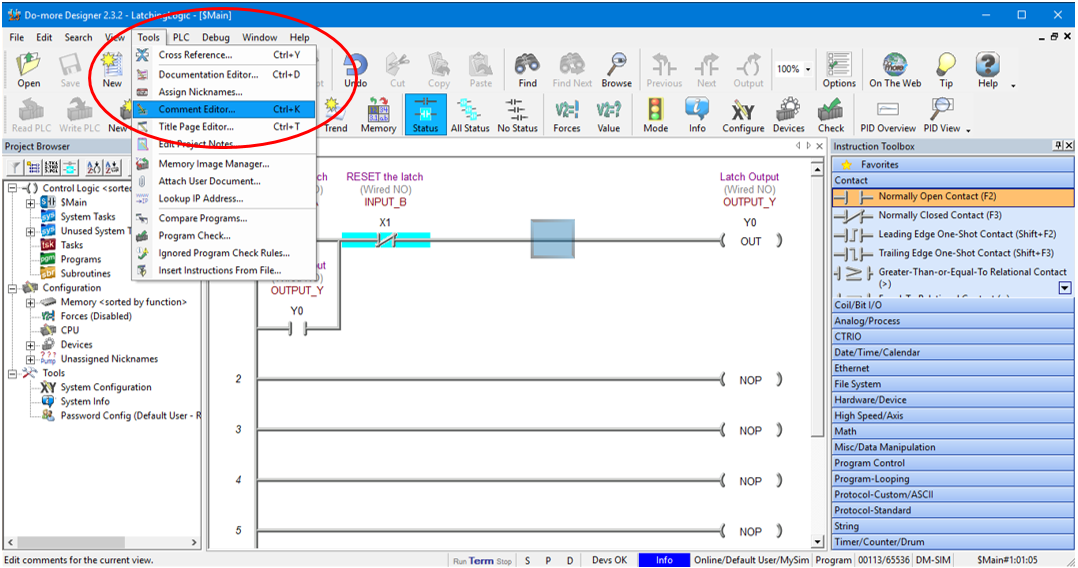
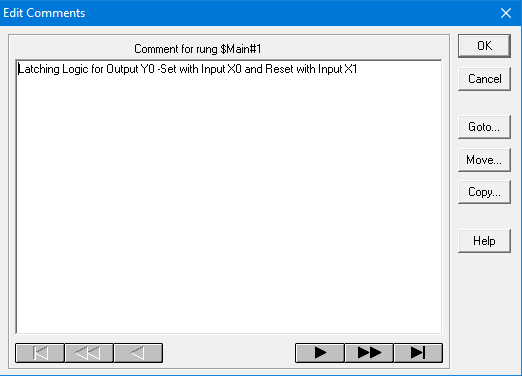
Enter the comments in the dialog box that pops up and hit OK….
Now our ladder diagram should have the comment displayed at the very top of the rung as shown below….
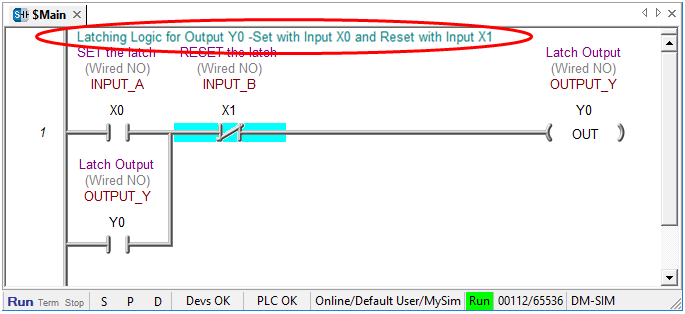
Congratulations…. you have just simulated a PLC latching logic using ladder logic simulator software.

Ladder Logic Simulator Tips

Here are some handy tips to remember…

  • Turn Edit Mode on in the Main Toolbar to start programming changes.
  • After changing the program click Accept in the Main Toolbar to compile the program.
  • Remember to save any programming changes.
  • Start the PLC programming simulator before connecting to it.
  • When connecting to the PLC make sure to tick the “link Enable” box.
  • Put the PLC programming simulator to Terminal mode before downloading.
  • To download to your ladder logic to the PLC programming simulator click on the “Write PLC” button in the Main Toolbar.
  • Flick the PLC programming simulator to RUN mode to enable logic processing.
  • Make sure Status is turned on in the Main Toolbar to see the logic flow indication.

If you are interested in knowing the basics of ladder logic programming then click here.
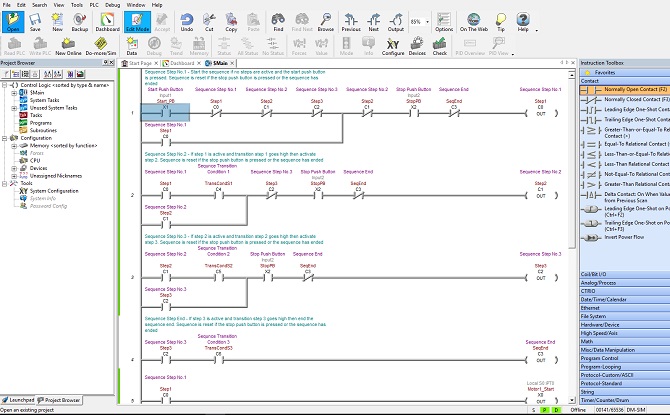
Ladder Logic Programming


In the very early days of PLC programming ladder diagrams were configured and loaded into a PLC using dedicated hand held programmers. These hand held programmers were extremely slow and tedious to use.

Programming was made a lot easier with the introduction of PC’s and interface software using text based operating systems such as the Microsoft platform MS-DOS. The eventual move away from text based operating systems and into graphical operating systems such as Microsoft Windows has in turn led to the development of graphical PLC programming software.

In fact, the latest software uses many of the operating features that common word processing software utilizes….

  • Menu bar and tool bar system.
  • Drop down boxes.
  • Drag and drop capability.
  • Directory like layout and organization.
  • Comprehensive search functionality.
  • Advanced editing functionality.
  • Multiple window for multitasking.
  • Data tables for variable declaration.
  • On the fly variable declaration.
  • Graphical and tabular debugging features.

The latest versions of programming software from the major PLC manufacturers such as Allen Bradley, Siemens, Omron, Schneider, Unitronics, Idec, Koyo and Mitsubishi have made even advanced PLC programming easier than ever.

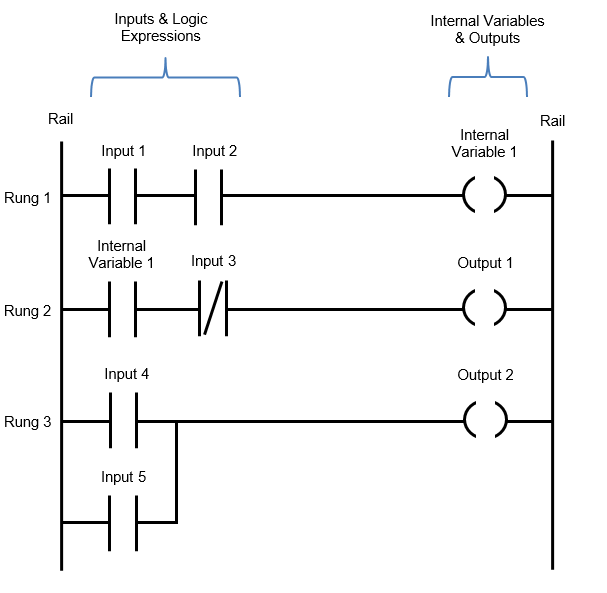
Ladder logic programming is based on the use of ladder diagrams. Therefore writing such programs for a Programmable Logic Controller (PLC) are very similar to drawing electric relay control circuits. Ladder diagrams consist of two vertical lines that represent the power rails. The circuit components are connected as horizontal lines between the two vertical lines…the rungs of a ladder.

Writing Ladder Logic Programs

In order to learn ladder logic programming there is no need to have experience in other text based programming languages such as C, BASIC, Pascal and FORTRON. However if you are an Electrician, Electrical/Electronic Engineer or Student then you will have a basic understanding of electric circuits and ladder logic programming will be a breeze. If not, don’t worry, the concepts of ladder logic programming are simple enough to grasp and you’ll be writing your first line of code in no time at all!

Ladder logic diagrams are structured to look like an electric circuit schematic. The logic flow is from left to right and simulates the current flow in an electric circuit. The basic logic expressions can be arranged to form AND, OR and NOT logic operations by implementing normally open/closed contacts and series/parallel connections.

There is always a left hand side rail and right hand side rail with inputs, logic expressions, internal variables and outputs packed in between. Each element is interconnected to form a line of code, called a rung.

Multiple rungs of code end up looking like a ladder….. Hence the name “Ladder Logic”.

The ladder logic diagram below shows the basic components and how they are arranged when writing a ladder logic program…..

Ladder Logic Diagram

Because ladder logic is a graphical programming language these days the programming software is drag and drop, so it makes it very user friendly. The programming software to write ladder logic code is obtained from the manufacturer and is installed onto your PC. Some manufacturers have free programming software and some require a software license. Be careful because software license=$$$$.

Ladder Logic Programming Rules

Every PLC manufacturer has slightly different ladder logic programming rules when it comes to building the logical expressions contained within a rung. Even a manufacturer with multiple PLC models can have varying rules depending on processing power of each PLC model. But there are seven basic rules that all PLC manufacturers use for ladder logic programming….

1. A PLC scans each rung in the ladder diagram from the left hand side to the right hand side and from the top to the bottom.

2. The PLC scan runs in a repeated cyclic manner where the inputs are monitored, the rung logic evaluated and then the state of the outputs are executed. The scan time is expressed in milliseconds (ms).

3. The logic state of the outputs is evaluated as the program scans through the rungs. But they are only updated at the very end of each PLC scan, simultaneously.

4. There must be at least one input or logic expression at the start of each rung.

5. There must be at least one output at the end of each rung.

6. Each rung in the ladder diagram represents one logic operation in the overall control operation.

7. An input, output or logic expression can be used more than once in the ladder diagram. The same tag name and address is used to label it if used more than once.

To learn more about the PLC scan cycle click here.

Memory Structure For Ladder Logic Programming  

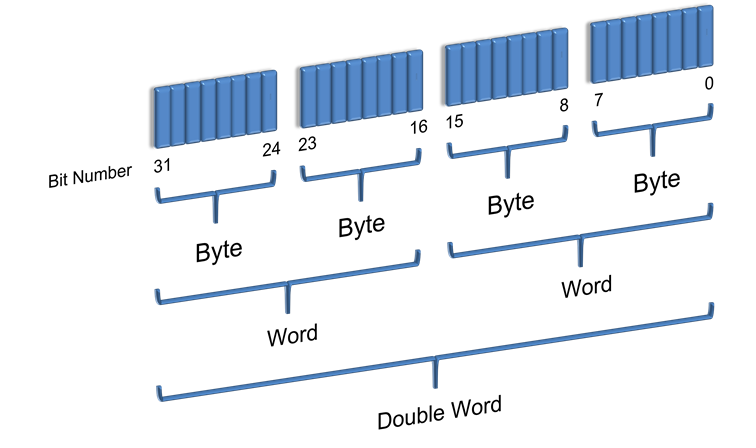
The memory structure for Ladder Logic Programming is just like that of a computer. It is made up of bits, bytes, words and double words.

  • Bit – The smallest memory unit. It is either 1 (True) or 0 (False).
  • Byte – Is made up of 8 bits.
  • Word – Is made up of 16 bits or 2 Bytes.
  • Double Word – Is made up of 32 bits, 4 Bytes or 2 Words.
Ladder Logic Programming Memory Structure

Defining Variables For Use In Ladder Logic Programming  

In order for the PLC to process the ladder logic rungs each symbol needs to be allocated to a variable name weather it’s an input, output or internal data. There are three essential elements that must be defined when declaring a variable and one optional element.

  1. Variable Name – The name must be unique and is used to make the ladder logic easily readable by human beings, such as yourself. There will be restrictions on the length and sometimes characters that can be used.
  2. Address – the address can be either an Input, Output, Internal or System memory address. The address nomenclature is dependent on the PLC manufacturer.
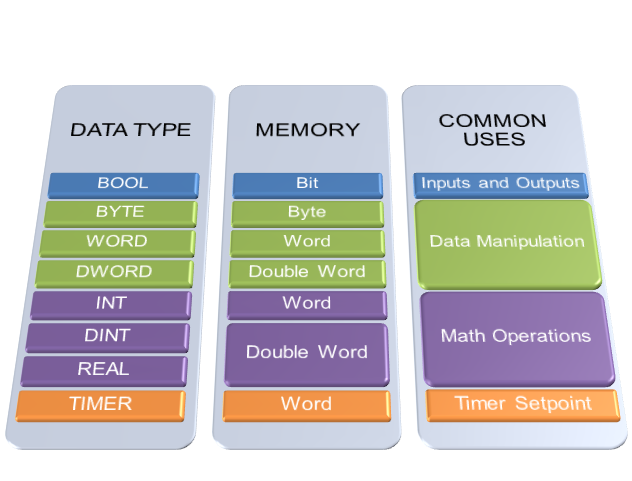
  3. Data Type – The data type used will depend on the symbol being used and the programming operation required. Defining a variable as a BOOL (Boolean) means it has a binary value, an INT (integer) means it has a whole number value and a REAL (floating point) means it has a number value with a decimal point.
  4. Comment – Adding a comment is optional, but can assist in describing the variable if the amount of characters in the variable name was insufficient.

The table below shows some standard data types, PLC memory allocation and common uses for each data types.

Ladder Logic Data Types

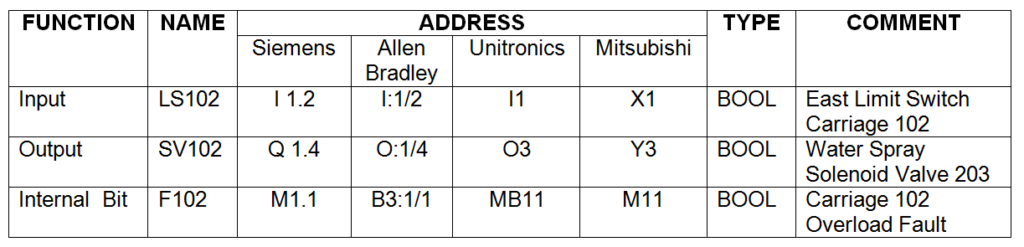
Different PLC manufacturers use slightly different naming conventions for variables and memory allocation. It’s just a matter of checking the PLC’s help file to determine what to use. Some examples of variable addressing nomenclature for different PLC manufacturers is shown in the table below….

Ladder Logic Programming Data Table

Start Ladder Logic Programming

To start programming you’ll need to get your hands on some software from the PLC manufacturer. Some PLC manufactures have yearly licensing fees $$ for their programming software and others have free programming software.

Regardless of what PLC programming software you use every PLC will have an area in their programming software where the ladder logic programming is done, usually called the “Main Program”. Now-a-days PLC development software for ladder logic is drag and drop….it makes it so easy. Grab the symbol in the toolbar and drag it onto the rung. Next add a variable to the symbol. Most PLC development software allows you to declare variable as you add symbols.

Remember to add lots of descriptive comments to each rung. It helps with readability and trouble shooting.

It’s a good idea to keep each rung as simple as possible. Cramming too much into a rung can save on memory but it can create a really complex network of logic that can come back and bite you if you need to return at a later date to upgrade or modify your program.

Trust me….you’ll spend ages trying to figure out the monster you’ve created….ouch!

A well written PLC program will ensure your machine or plant will be highly productive, efficient and with low downtime.

Ladder Logic Programming with Sub-Routines

If the program starts to get quite large then addition of sub-routines are recommended. Some PLC models will also have additional areas where the sub-routine programming is done. Either way subroutines can help your ladder logic programming to be easier to read and assist in troubleshoot by providing a way to organize your code into kind of a filing system.

It’s up to you with regards to naming your subroutines. Remember to create sub routines so that you can group all the same type of code in the one place. Some examples of possible sub routines that can be created are…..

  • Main Program
  • Sequence Steps
  • Motor control
  • Fault logic
  • Interlock logic
  • Analogue scaling

Upload And Download Your Ladder Logic Program

Once your ladder logic program is complete you will need to compile the program. The compile, button is usually located in the toolbar. Compiling the program is just checking for syntax, memory and program structural errors. If there are any issues then error messages will be generated that directly points you to the source of the problem.

Once all the errors are fixed it’s time to download to the PLC. The download button is also usually located in the toolbar of the PLC programming software.

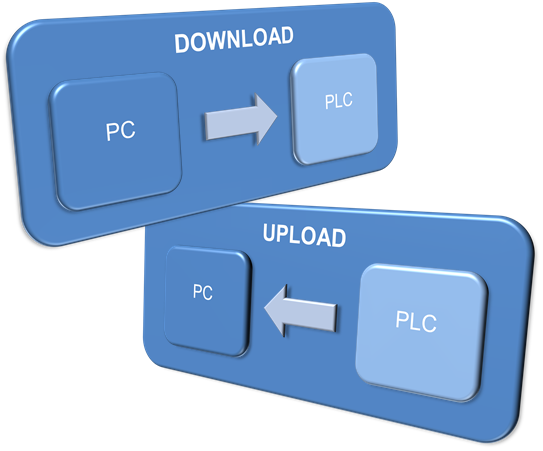
PLC Upload Vs Download

The PLC is taken to be the point of reference when we talk about program upload and download. Therefore a PLC Download is transferring the program from your PC to the PLC. While a PLC Upload is transferring the program from the PLC to your PC.

PLC Upload VsDownload
PLC Upload Vs Download

Remember To Set Your Ladder Logic Programming To RUN MODE

So you’ve written the ladder logic program, compiled and downloaded to the PLC, but nothing is happening ……….You need to put the PLC into run mode.

Run mode simply starts the PLC scan cycle.    

Some PLC’s have a key switch, others have a soft switch done through the PLC development software (usually some buttons in the toolbar). Either way there should be a RUN light that illuminates on the face of the PLC……now you’re cooking!

Debugging Your Ladder Logic Program

Ladder logic is great for debugging your program. When you place the PLC development software in ONLINE mode the symbols in each rung highlight in real time when their respective conditions are TRUE. So if your rung is fully highlighted all way up to your output, then the output is TRUE…… Just like current flow in an electric circuit.

To assist in testing and commissioning you can also force the state of binary variables to TRUE or FALSE and also force analogue variables to a specific value. This can be very useful, but remember to release all the forced variables after you’ve finished testing your program.

Most PLC programming software have the facility to create variable tables which display the variable information and status or value. This gives you a handy display area for analyzing the status and value of the variables instead of scrolling up and down through your rungs of code.

With the latest programming software multiple windows, with the program and variables table, can be displayed simultaneously which comes in super handy when debugging.

Ladder Logic Programming IEC 61131 Standards

International PLC programming standards are contained in IEC 61131 in which ladder logic programming standards are outlined in IEC 61131 section 3 (IEC 61131-3).

Don’t panic….you don’t have to start learning the IEC 61131-3 standards. All the IEC61131-3 standard means is that if you learn ladder logic then you’ll be able to apply it to any manufacturers PLC’s. Good news, right!!

You see, ladder logic and PLC’s have become an extremely popular alternative for automation control system compared to traditional methods. As it’s popularity grew, so did the amount of companies manufacturing PLCs. Soon there were a multitude of manufacturers each with their own version of a PLC programming language. So the International Electrotechnical Commission published a PLC programming standard to bring commonality to the various versions of each programming language found in all the different manufactures PLC’s.

The ladder logic programming language is denoted by (LD) in the IEC 61131-3 standard. There are other programming languages that are contained in the IEC 61131-3 standard, but you will find that the most common PLC language is ladder logic. It is by far the best “foot in the door” when it comes to PLC programming and it can accomplish the majority of application control tasks.

Nowadays most PLC manufacturers fully or partially support the IEC6111 standard. There is no obligation for manufactures to comply with the IEC 61131 standard and in fact some PLC manufacturers have designed their programming software to be more user friendly than the IEC 61131-3 standard. So it’s good to be aware that the IEC 61131 standard for PLC programming exists, but there’s no need to get too caught up in it all!

Ladder Logic Programming Samples

The best way to progress from this point is to dive into some ladder logic programming samples. We can think of a sample ladder logic program as a piece of the overall programming puzzle. If we create enough ladder logic programming pieces and join them together we can form a complete program.

In the next section we will begin to investigate programming examples with one of the most important pieces of ladder logic you’ll ever use.

To go to the next section click here.
Relay Logic Vs Ladder Logic


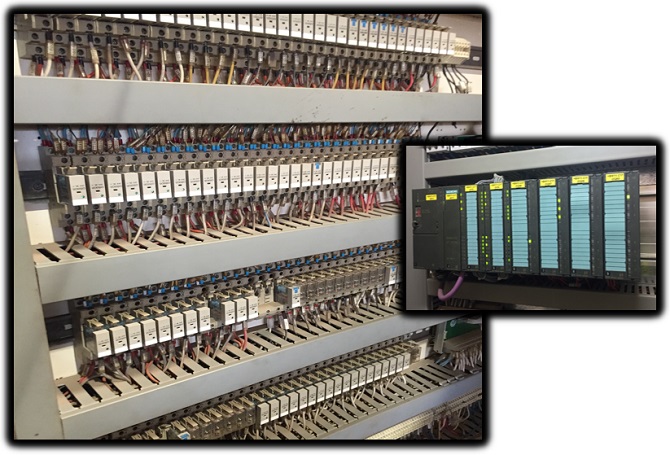
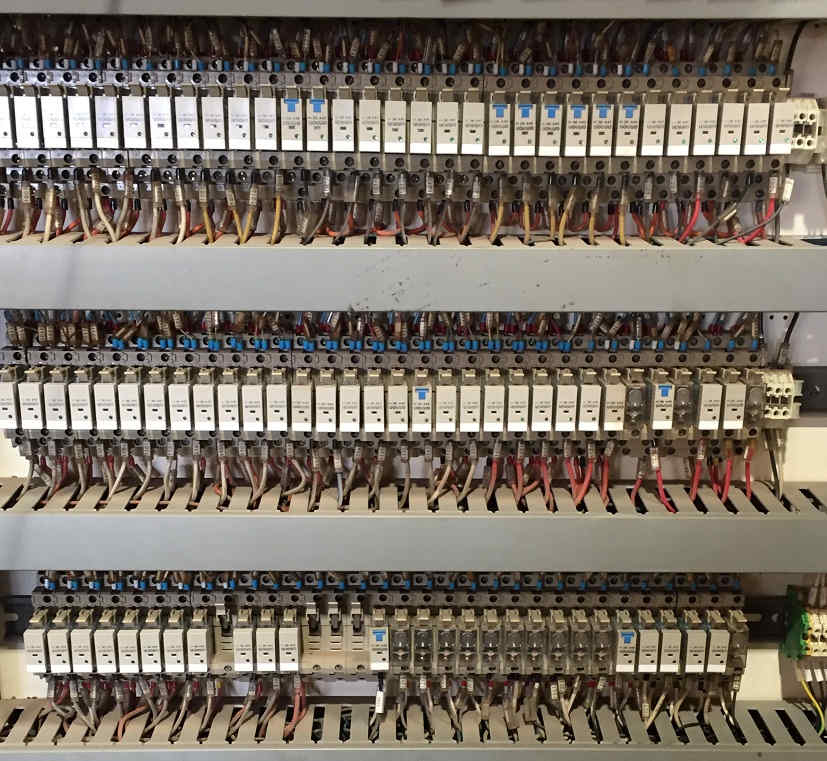
Relay logic is a hard wired control system using instrumentation, switches, timers, relays, contactors, motors and actuators. Traditional machine and process automation was accomplished using relay logic. Automating a machine using relay logic requires a mass of wiring and magnitude of devices to perform even the simplest of tasks.

Some of the other problems with implementing relay logic are:

  • Requires a lot of switchboard space.
  • Installation is very labor intensive.
  • Trouble shooting is extremely difficult.
  • Modifications to the control functionality are complicated and seriously tedious.
Relay Logic Vs Ladder Logic - Relay Logic Panel
Relay Logic Vs Ladder Logic – Relay Logic Panel

The advent of the microprocessor meant that relay logic control functionality could be programmed and stored in a computer. In the late 1960’s some really brainy people realized this and pressed ahead to create a device called a Programmable Logic Controller (PLC).

Relay logic in a PLC is the method of formulating logical expressions in order to automate machinery and processes in industrial applications. The programming language that is used to create relay logic in a PLC is called Ladder Logic.

This was a massive breakthrough in the industrial automation industry which would eventually render relay logic control systems near redundant.

In an automated control system the main advantages of a PLC over relays are:

  • Easier to develop complex logical expressions with ladder logic software.
  • Increased reliability with PLC life easily reaching +10years,
  • Easier and cheaper to modify or expand the control system at a later date.
  • Reduced design, installation and component costs.
  • Virtually maintenance free compared to relays.
  • Superior monitoring and reporting functionality making process trouble shooting and optimization easier.
Relay Logic Vs Ladder Logic - PLC Ladder Logic
Relay Logic Vs Ladder Logic – PLC Ladder Logic

To understand the difference between relay logic and ladder logic it’s really important that you understand relay logic and how a relay works. Understanding relay logic is a good stepping stone to understanding ladder logic. After all, ladder logic was originally derived from relay logic. Makes sense, right?

How Do Relay Logic Systems Work?

Relay logic systems are a network of hard wired electrical components. The relay is the fundamental component and it works by switching electric circuits on and off to form logic operations that in turn provide process control to the system. You can think of relay logic systems as a mechanical computer that does computation with 1’s and 0’s by switching relays instead of using a silicon chip.

The fundamental component of a relay logic is the relay. So let’s look at how relays work in a little more detail…

What Is A Relay?

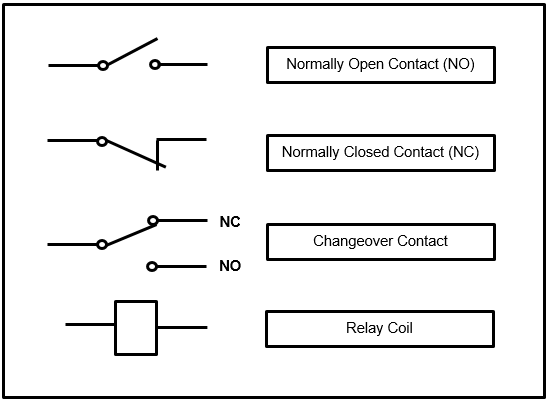
A relay is an electromechanical device that consists of two basic components, a relay coil and relay contact. The relay contact is used to switch a circuit on or off and the relay coil is used to change the state of the relay contact. The three main types of relays are spring return relays, latching relays and multipole relays.

Why Are Relays Used In Control Circuits?

Relays are used because they allow electric isolation between the switching circuit (contact) and control signal circuit (coil) via means of electromagnetics. That means relays can be used to connect circuits with different voltage and current levels to control equipment like motors and actuators. A relay can also switch multiple circuits with different states at the same time making them ideal for logic control circuits in industrial automation.   

What Functions Does A Relay Perform?

Relays perform 3 main functions in an electric circuit:

  • Allowing control circuits to switch a load circuit even if the voltages of both circuit are different.
  • Able to switch a high current device using a low current electronic control signal.
  • Relays can be wired in combination to perform logical operations using a network of electric circuits known as relay logic.

How a Relay Works

A relay is an electromechanical device that consists of two basic components….

  • Relay coil.
  • Relay Contact.

A relay coil is essentially copper wire wound around a chunk of iron that is used to produce an electromagnetic field that can attract metal. Think of a junk yard crane that is used to pick up scrap metal. It uses the same principle to generate a magnetic field that attracts metal.

A relay contact is basically a switch that is used to turn an electric circuit on or off.

Hang on a minute! If the contacts of a relay turn an electric circuit on or off why do we need the coil?

Well, the relay coil’s purpose is to change the state of the relay contacts. Just like your finger is used to change the state of a light switch from off to on. So, we are changing the state of the contacts using an electrical signal instead of your using your finger.

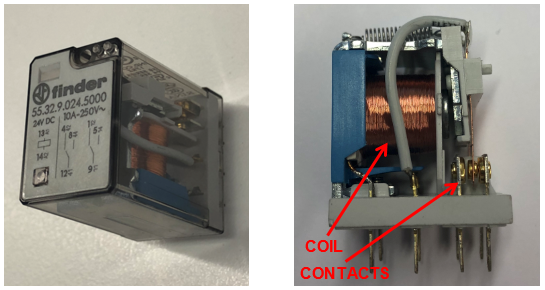
Relay Logic Vs Ladder Logic - Electromechanical Relay
Electromechanical Relay

To energize the coil we need to connect it to a voltage source, which is sometimes called a relay input.

Some common DC voltage relays are 5V relay, 12V relay and 24V relay. Some common AC voltage relays are 120VAC relay and 240VAC relay.

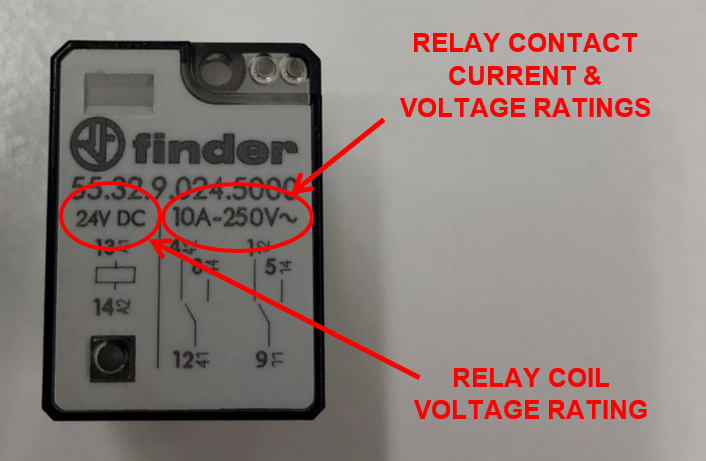
The voltage rating is usually written on the casing of the relay. The coil voltage rating needs to be adhered to otherwise the relay coil may fail to change the state of the contacts or overheat and burn out.

When we energize the relay coil with it’s rated voltage it allows current to flow within the relay coil and produces and electromagnetic field. This electromagnetic field is used to attract the relay contact towards the relay coil, thus changing the state of the relay contacts.

The relay contacts are either configured normally open (NO) or normally closed (NC). Quite often a relay will have changeover contacts.

So what is a changeover contact?

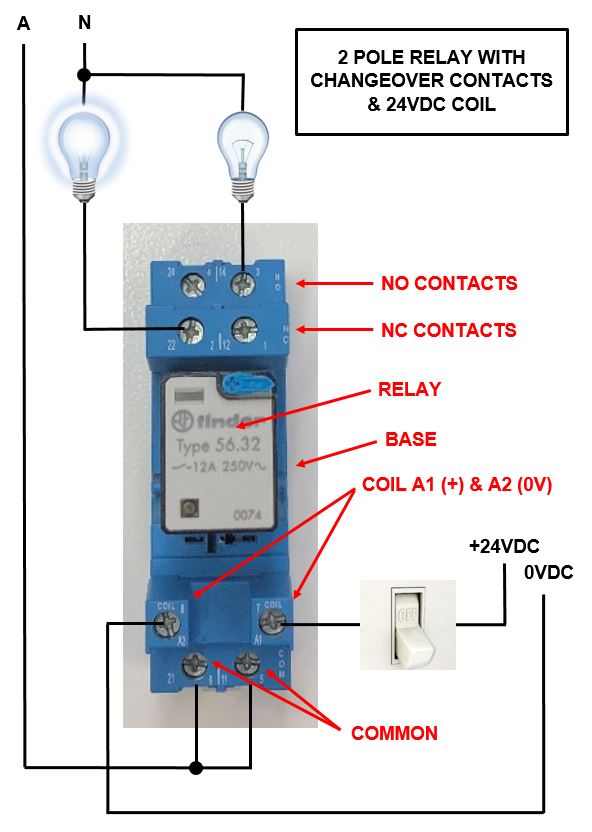
A changeover contact is the combination of both normally open (NO) and normally closed (NC) contacts in the same contact block. The changeover contact allows selection of either the normally open (NO) or the normally closed (NC) contact depending on the way it is wired. It is sometimes called a double throw contact.

The contact voltage and current rating is usually written on the casing of the relay. The contact voltage and current rating needs to be adhered to otherwise the relay contact may overheat and burn out.

If the relay coil voltage rating and contact voltage and current rating are not written on the relay casing then check the relay base. Sometimes it’s a combination of both the case and base. If all else fails then consult the data sheet.

Relay Coil With Contact Voltage & Current Rating

Relay Operation

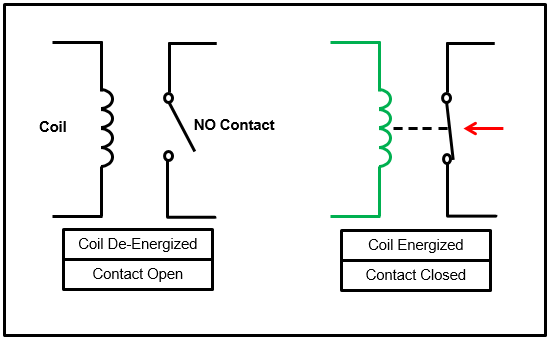
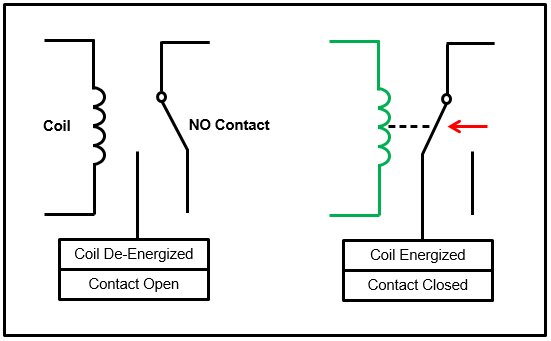
If a relay is wired to a normally open (NO) contact and the relay is energized then the contact will change state from OPEN to CLOSED…..

Basic Relay Operation with Normally Open (NO) Contact

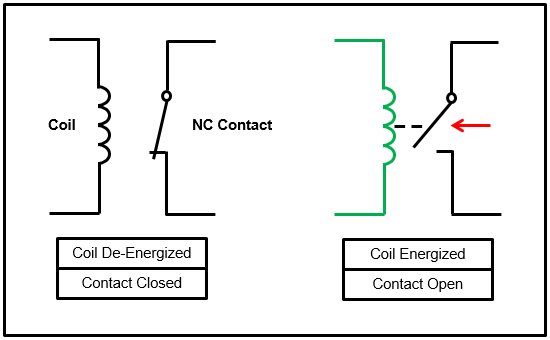
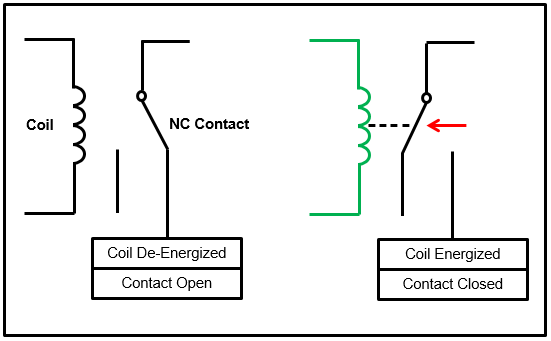
If a relay is wired to a normally closed (NC) contact and the relay is energized then the contact will change state from CLOSED to OPEN…..

Basic Relay Operation with Normally Closed (NC) Contact

If a relay with changeover contacts is wired in a normally open (NO) configuration and the relay is energized then the contact will change state from OPEN to CLOSED…..

Basic Relay Operation with Changeover Contacts wired Normally Open (NO)

If a relay with changeover contacts is wired in a normally closed (NC) configuration and the relay is energized then the contact will change state from CLOSED to OPEN. Notice that the wiring of the contacts has changed sides…..

Relay Operation with Changeover Contacts wired Normally Closed (NC)

Types of  Relays

There are several types of relays each with their specific characteristics and uses. The 3 types that are used frequently in industrial applications are spring return relays, latching relays and multipole relays.

Spring Return Relay

The most common relays are spring return relays. They have one relay coil and use a spring to return the relay contact back to it’s normal state after the relay coil is de-energized and the electromagnetic field has collapses.

The relay coil must be energized at all times in order for the state of the relay contact to remain in it’s changed state. As soon as the coil is de-energized then the relay contact returns back to it’s normal state.

Can you see the spring in the “Electromechanical Relay” picture above? The spring is at the very top of the relay.

Latching Relay

A latching relay is a type of relay that can change and maintain the state of the contact without the need for the coil to be constantly energized. It utilizes two separate coils, each of which are responsible for a certain state of the contact either open or closed. A short voltage pulse to energize either coil in the latching relay is all that is required to change the state of the contact. 

Multi Pole Relay

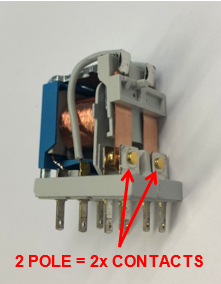
A multi pole relay is any type of relay with more than one contact. Each relay contact is called a pole. So a relay with two contacts will be called a two pole relay and a relay with four contacts will be called a four pole relay.

When using multi pole relays multiple coils are not required to change the state of the contacts. The state of all the relay contacts is changed at the same time by a single relay coil.

Two Pole Relay
Two Pole Relay

In short, the operation of a single pole relay is the same as a multi pole relay, we just have more contacts to play with!

This is handy when we are activating more than one device. Especially when the devices need different voltage levels or the combined current draw of multiple devices exceeds the current rating of a single contact. It’s also handy having multi pole relays when the process control logic gets complex.

How do you connect a Relay?

In order to connect a relay we need to wire the coil to a voltage supply (generally switched) and the contacts to the load device like a light, motor, solenoid valve or another relay. This can be done by connecting the relay coil and contact wires to the terminals of a relay base. The relay base terminal allocation for connection is usually drawn on the relay casing, labelled on the relay base or detailed in the relay data sheet.

How to connect a Relay

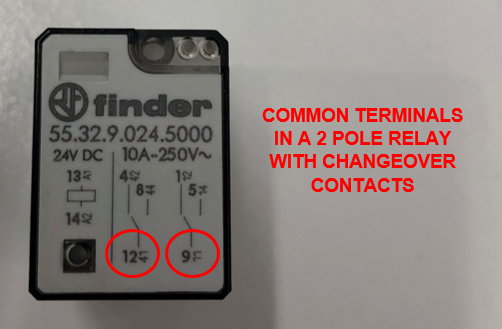
The common on a relay is the terminal associated with the part of the contact that does not switch when the relay coil is energized. In a relay with a changeover contact it is the terminal “common” to both the NO and NC contacts. When the common is wired correctly it is connected to the load supply voltage.

Common On A Relay
Common On A Relay

Relay Logic Circuits

The fundamental elements of relay logic circuits are….

  • Power supply.
  • Relay components.
  • Connection wires.

The power supply voltage needs to match the rated relay coil voltage. Also, the power supply needs to be big enough to accommodate the current draw of all the relays when they are energized.

The relays are selected according to the power supply’s output voltage, functionality and current rating of the contacts required.

Because relay logic is a hard wired system some sort of wiring diagram or relay schematic diagram is required to make sense of it all.

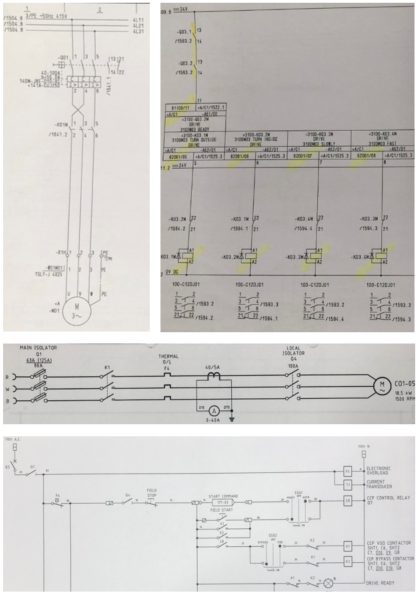
Now please take note, there are many ways to draw an electric circuit. Depending on which country you are from will determine which standard relay wiring diagram you will need to use.  The way circuits are laid out and the component symbols will vary from one drawing standard to the next. Also, some drawing standards arrange their control circuits from left to right and some use top to bottom. Check out the sample drawings below….

Power and Relay Schematic Diagram Examples

For the purposes of this explanation a left to right arrangement will be used because it ties in with ladder logic diagrams later on.

A relay schematic diagram consists of a supply voltage rail on the left hand side and a zero voltage rail on the right hand side drawn as vertical lines.

The relay components and other devices are packed in between connected by wires, drawn as horizontal lines, to form a circuit.

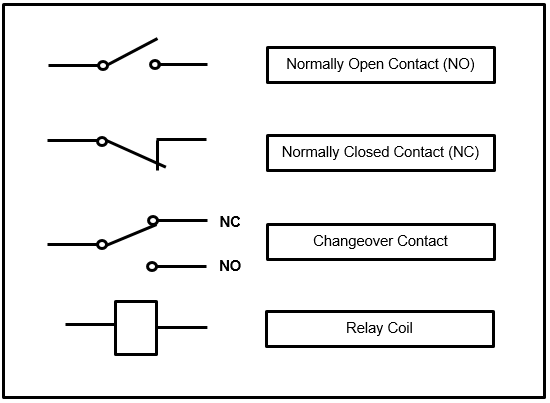
Relay Logic Symbols

The relay coil and relay contacts can be drawn as per the relay logic symbols diagram below….

Relay Logic Vs Ladder Logic - Relay Logic Symbols
Relay Logic Vs Ladder Logic – Relay Logic Symbols

How to Read a Relay Schematic

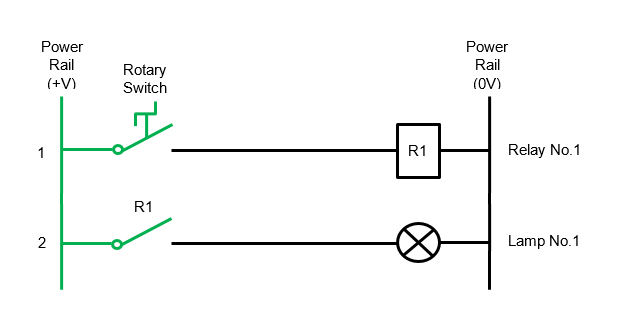
The most basic of relay logic circuits uses a power supply, a relay, a switch and a device that needs to be switched ON or OFF all wired together as shown in the simple relay diagram below….

Relay Logic Vs Ladder Logic - Relay Logic Circuit Example
Relay Logic Vs Ladder Logic – Relay Logic Circuit Example

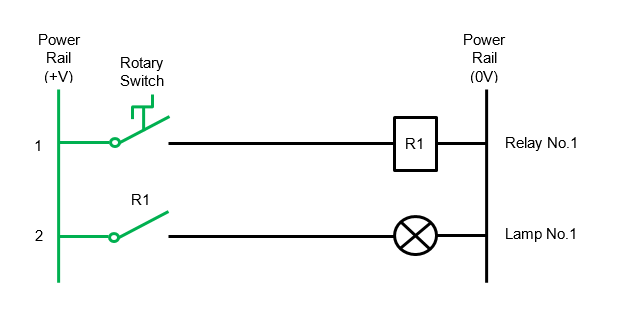
The above relay logic circuit example shows a lamp (Lamp No.1) being switched on via a relay (Relay No.1).

The first line has a rotary switch connected to the coil of Relay No.1 with the relay coil labelled as R1.

The second line has a normally open contact from Relay No.1 also labelled R1 which is connected to Lamp No.1.

To aid in understanding relay schematics the sequence of events is read from the first horizontal line downwards and from the left hand side power rail to the right hand side power rail.

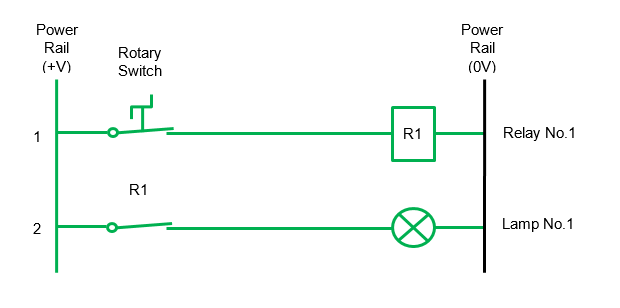
We read from left to right because the potential difference between the left and right hand side power rails creates current flow in that direction. In the example relay schematics a green line is used to highlight current flow in the circuit.

So, in the first line we start at the left hand side power rail and follow the horizontal line until we get to the normally open Rotary Switch.

If the rotary switch is in the OPEN state there is an open circuit and current cannot flow to the right hand side of the circuit. So the relay coil (R1) stays de-energized.

If we go to the second line we notice that the normally open relay contact (R1) stays OPEN because Relay No.1 coil (R1) is de-energized. Therefore there is also an open circuit on the second line so no current can flow to the lamp and it stays OFF….

Basic Relay Logic Circuit Example – With Rotary Switch Off

What happens when we turn the Rotary Switch on?

When the Rotary Switch is turned ON it’s state changes from OPEN to CLOSED.

If we look at the first line and start at the left hand side power rail then follow the horizontal line until we get to the Rotary Switch we can observe that it is in the CLOSED state and current can flow to the right hand side of the circuit.

So in this case the relay coil (R1) is energized and then we reach the end of the right hand side rail.

Now let’s go to the left hand side of the second line where we notice that the normally open relay contact (R1) has also changed state to CLOSED because the relay coil is energized.

Therefore there is a closed circuit on the second line so current can flow to the right hand side of the circuit and Lamp No1 turns ON….

Basic Relay Logic Circuit Example – With Rotary Switch On

Let’s spice it up and add another line to the relay logic circuit.

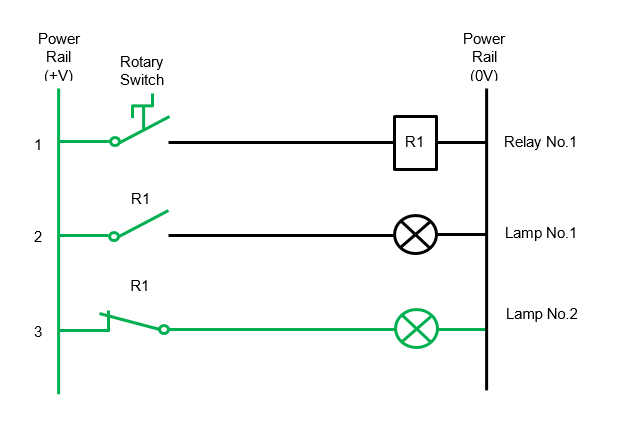
This time we’ll use a second relay contact from Relay No1 and wire it as a normally closed contact.  Then we’ll add a second lamp (Lamp No2) to the new circuit.

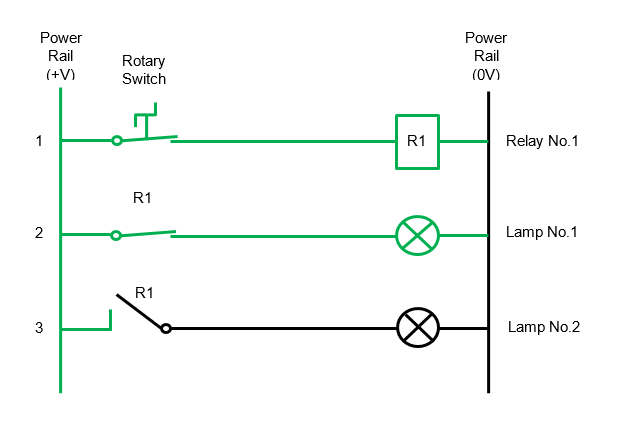
In this case the operation of that lamp will be reversed. So when the Rotary Switch is OFF, Lamp No.2 is ON and when the Rotary Switch is ON, Lamp No.2 is OFF.

Wait, what????

Don’t believe me then check out the relay logic circuit below….

Relay Reverse Logic – With Rotary Switch Off

The new relay contact in the third line is now a normally closed instead of normally open.

When Relay No.1 coil is de-energized it’s normally closed contact is in it’s normal state, that is CLOSED.

When Relay No.1 coil is energized it’s normally closed contact changes state to OPEN.

A normally closed contact behaves the opposite of a normally open contact. It’s sometimes referred to as reverse relay logic or just reverse logic. See below….

Relay Reverse Logic – With Rotary Switch On

Ladder Logic Control

Remember the statement earlier on this page – Ladder Logic was originally derived from Relay Logic.

So, what is the difference between relay logic and ladder logic?

The big difference between relay logic and ladder logic is that relay logic needs to hard wire each and every control circuit for every single control function. Whereas ladder logic uses the assistance of a microprocessor based device called a Programmable Logic Controller (PLC).

And, how does a PLC differ from relay logic?

The difference between a PLC and relay logic is that a PLC is a programmable device whereas relay logic is a network of hardwired electrical devices. Both a PLC and relay logic can perform logical computation, but a PLC does it using a microprocessor and relay logic does it using electric circuits.

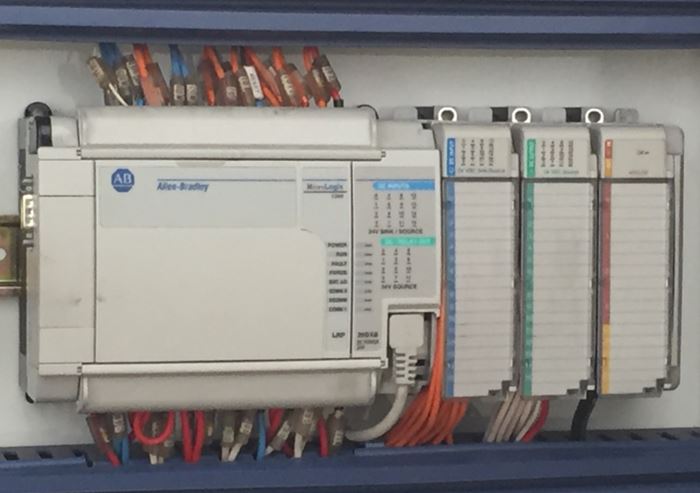
So essentially what we are doing is getting a mass of relays and wires and replacing them with a tiny box that has awesome computing power.

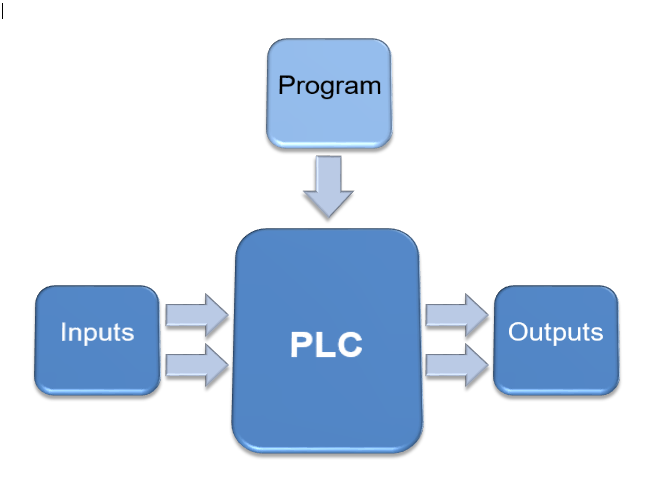
Even with a PLC and ladder logic programming we still need to hard wire certain devices such as the switches and lamps just like in the relay logic examples above. But the wiring is greatly reduced because only the input and output devices need hard wiring. The control relays that are used to form the control functionality and logic functions are replaced by the ladder logic program stored internally within the PLC memory.

Relay Logic Vs Ladder Logic - Programmable Logic Controller
Relay Logic Vs Ladder Logic – Programmable Logic Controller

The format of a ladder logic diagram is similar to that of a relay logic circuit.

There is power rail on the left hand side and a power rail on the right hand side drawn as vertical lines.

The logic programming is inserted in between the power rails and connected with horizontal lines to form a logic expression.

Each line of the ladder logic diagram is called a rung.

STOP…. rails and rungs….That’s why the term “Ladder” is used in Ladder Logic…. Light bulb moment!

However the symbols used are a bit different to the relay logic circuit drawings. Check out the table below to compare the differences of the basic components…

Relay Logic Vs Ladder Logic Symbols

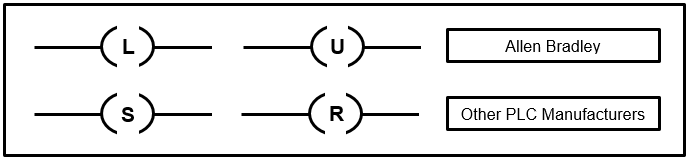
If we were to use a latching relay which uses two coils, one to latch (or set) the relay and the other to un-latch (or reset) the relay. The relay symbols are represented as below….

Ladder Logic Latching Relay

To outline the difference let’s use the example above where a switch is turning two lamps ON and OFF alternatively.

If we use a PLC with a ladder logic program we firstly need to hard wire the switch to the input terminals of the PLC. Then we need to hard wire the lamps to the output terminals. Lastly, we need to write our ladder logic program and load it into the PLC memory.

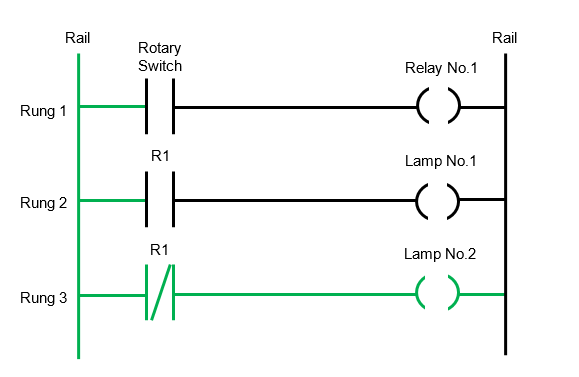
The diagram below shows a ladder logic diagram when the Rotary Switch is OFF….

Ladder Logic Diagram – Rotary Switch Off

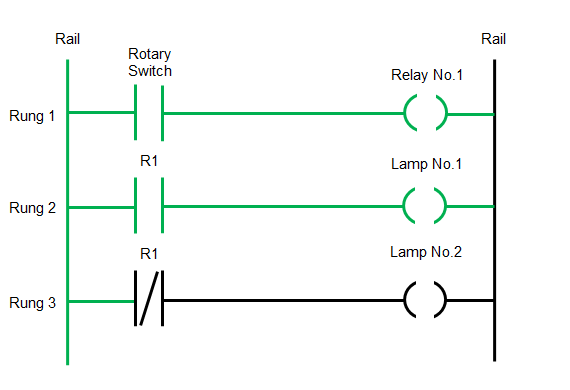
The diagram below shows a ladder logic diagram when the Rotary Switch is on.

Remember the normally closed contact is reverse logic!

Ladder Logic Diagram – Rotary Switch On

Ladder Logic Advantages

Some of the advantages that ladder logic control systems have over relay logic control systems are:

  • Installation time is greatly reduced with ladder logic control systems due to the reduced amount of hard wiring required. In other words, we only need to hard wire the input and output devices. The control logic is implemented using software not hard wired relays.
  • Modifications to the control logic can easily be done using software to modify the ladder logic program rather than hardware and wiring modifications that would normally be the case with relay logic control.
  • The same PLC can be used for a wide range of control system applications by simply loading a different ladder logic program into the PLC memory.
  • Control system expansion is simplified with a PLC by adding expansion modules as opposed to complex hardware and wiring modifications that would be the case with relay logic control.
  • Ladder logic is microprocessor based which has faster execution times, is far more reliable and longer lasting than relay logic control systems which have a large amount of mechanical components.
  • Ladder logic control systems are far more compact than relay logic control systems.

So, in the battle of relay logic vs ladder logic we can confirm that ladder logic is definitely winning. In fact it can be said that relay logic control systems for larger installations are all but dead. Some countries still have regulations for burner control panels to be relay logic controlled, but these will no doubt be eventually replaced with PLC based control systems.

For some smaller installations where you have a handful of devices to control with basic functionality it’s still handy to use relay logic for controlling the application. But with the cheap price of PLC’s and the ease of ladder logic programming they are increasingly attractive for even the smaller applications.

In the next section we’ll build on ladder logic basics and uncover the seven essential rules that you must know to in order to program a Programmable Logic Controller (PLC) with ladder logic diagrams along with the basics of implementing PLC ladder logic programming.

To go to the next section click here.